
Whether you're a parent working through the National Curriculum at home or a teacher setting weekly spelling practice, Spelling.Live now includes four ready-made Key Stage 2 word lists so you can get started in seconds - no typing needed.
The four lists
The words come directly from the UK National Curriculum statutory word lists, the same ones your child's school uses:
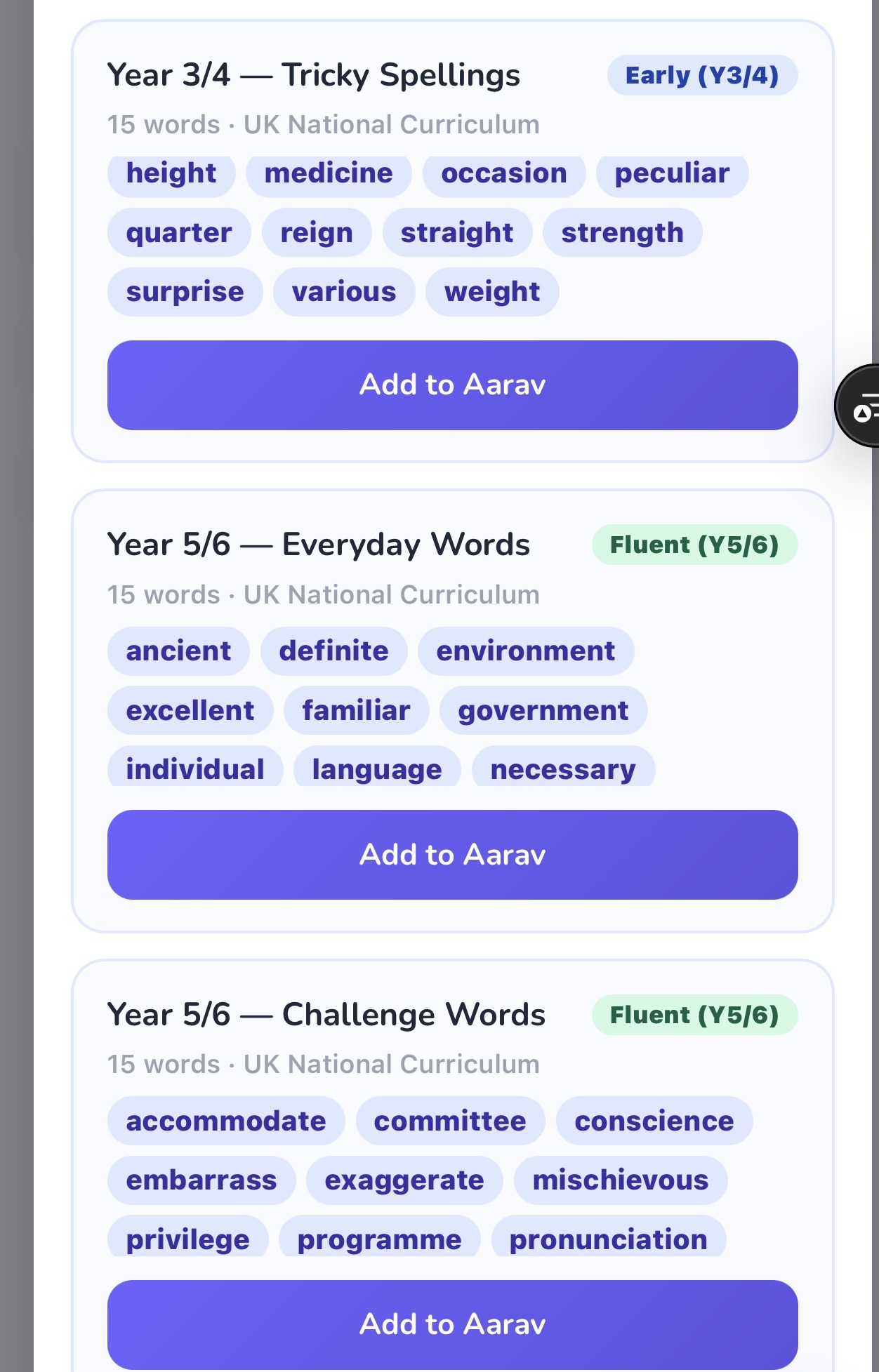
- Year 3/4 - Everyday Essentials: High-frequency words like believe, remember, and separate that come up constantly in written work.
- Year 3/4 - Tricky Spellings: The awkward ones - February, peculiar, reign - where the spelling doesn't follow obvious rules.
- Year 5/6 - Everyday Words: Words your Year 5 or 6 child needs to spell fluently, including environment, government, and necessary.
- Year 5/6 - Challenge Words: The ones that trip up even adults - accommodate, mischievous, pronunciation, rhythm.
Each list is 15 words - short enough to practise in a single session, long enough to provide a real challenge.
Source: National curriculum in England: English programmes of study, Department for Education.
How to add a list to your child
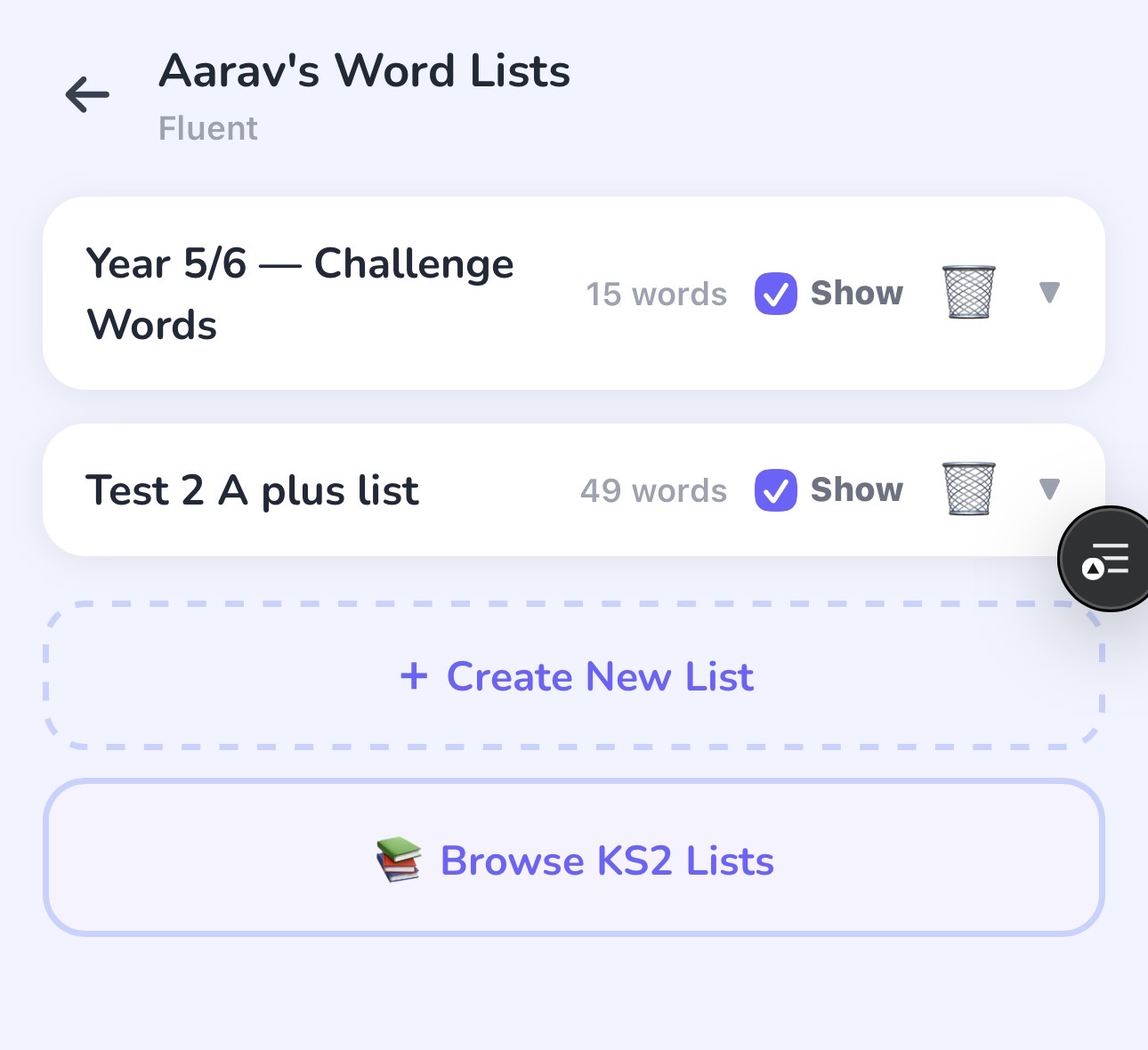
- Open your child's profile and tap Word Lists.
- Tap Browse KS2 Lists.
- Choose a list and tap Add to [child's name].
The list appears immediately in their word lists and is ready to play.
Tip: start with one list at a time
Resist the urge to add all four at once. Children learn spelling best in small, focused batches. Add one list, play through it over a week or two until your child is scoring consistently well, then move on to the next.
A good rule of thumb: move on when your child gets a full list right at least three sessions in a row. That's when the words have moved from short-term memory into long-term recall.
How to hide a list your child has mastered
Once your child has a list nailed, you don't need to delete it - you can hide it. Hidden lists stay saved (so you can refer back to the words later) but they won't appear on the home practice screen.
To hide a list:
- Open Word Lists for your child.
- Find the list you want to tuck away.
- Untick the visibility checkbox next to the list title.
The list disappears from the home screen straight away. To bring it back, just retick the checkbox.
Why hide rather than delete?
Deleting a list removes it permanently. Hiding keeps it as a record of what your child has already mastered - which can be really encouraging to look back on. It also means you can unhide it later for a quick revision session before exams.
Before SATs or end-of-year assessments, unhide the Year 5/6 lists for a rapid revision run. Your child has already done the hard work - this is just a refresh, and it only takes a few sessions.
Creating your own list
The KS2 lists are a starting point, not a limit. If your child's school uses different words, or your child has a specific area to work on (silent letters, homophones, topic vocabulary), tap Create New List and either type the words in or photograph a printed word list and the app will read them for you.
One quick shortcut: ask an AI assistant. Tools like Claude (claude.ai) or Microsoft Copilot can generate a focused spelling list in seconds. Try a prompt like "Give me 15 spelling words for a Year 4 child who struggles with silent letters" or "What are the 15 most commonly misspelled Year 5 words?" - then paste the list straight into Spelling.Live's Create New List screen. It takes about a minute and you end up with a list tailored exactly to your child's needs.
Custom lists and KS2 preset lists sit side by side, so you can mix statutory words with class-specific ones in whatever combination works best for your child.