
Drafted with AI assistance and reviewed, fact-checked and edited by hand before publishing - see our AI transparency page for how we use AI across the app.
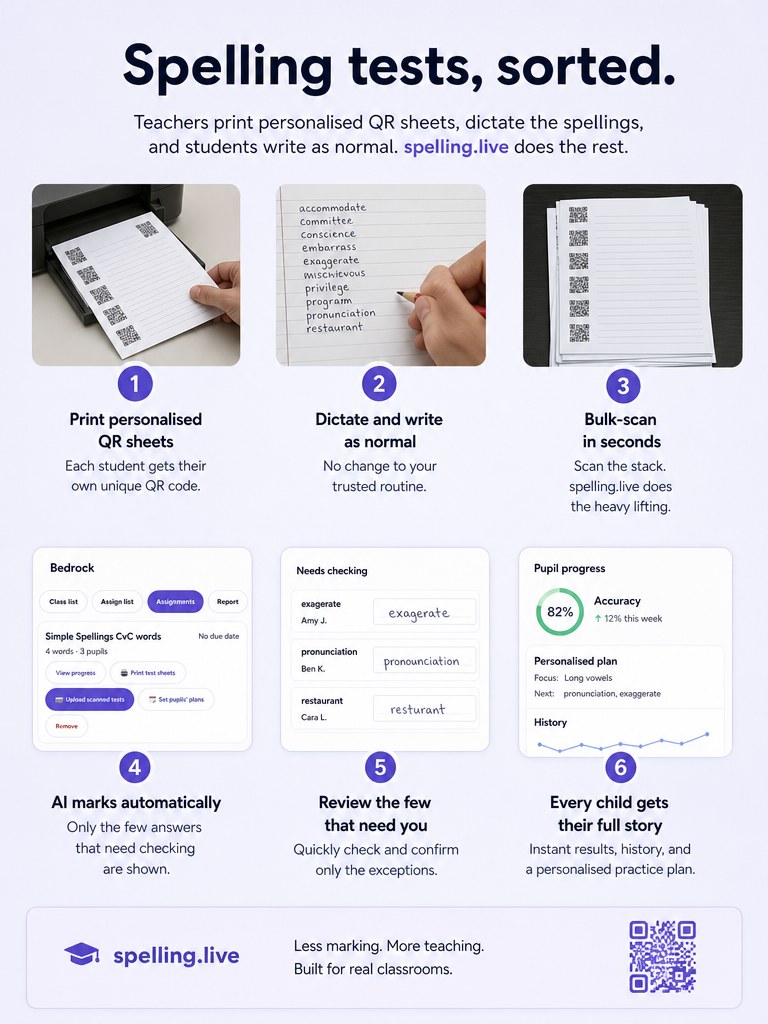
The Friday spelling test has not changed in decades, and honestly it does not need to: you read the words out, the class writes them down, you collect the sheets. The part that needs to change is what happens to the pile afterwards. Bulk scan marking keeps the test exactly as it is and takes the marking off your evening. Here is the whole workflow, start to finish, in six steps - and a sixty-second video if you would rather watch it.
1. Print personalised QR sheets
Open the assignment you want to test - any list you have assigned to a class - and choose 🖨 Print test sheets. You get one A4 sheet per pupil, with their name already on it, numbered lines for up to 15 words, and a small QR code in the corner. That code is what identifies the sheet later, so nobody has to write names on anything and a sheet can never be filed against the wrong child.
Sheets print straight from the popup's Print button. If your browser blocks pop-ups, allow them for spelling.live once and try again.
2. Dictate and write as normal
This step happens entirely on paper, outside the app. Read the words aloud the way you always have - in a sentence, twice, whatever your routine is - and pupils write each word on its numbered line. They can tick or cross their own answers afterwards if that is part of how you run things, but it is optional; the marking does not depend on it.
Nothing about the test itself changes, which is the point. Pupils are not typing into tablets and you are not managing devices - it is the same quiet room and the same pencil.
3. Bulk-scan the pile in seconds
Collect the sheets and put the whole pile through the photocopier's scan to PDF option as one file - one page per pupil, in any order, upside-down pages and all. Back in the app, choose 📷 Upload scanned tests on the same assignment and add that PDF.
Each page's QR code matches it to the right pupil automatically. If a page cannot be read - a crease over the code, a shadow from the scanner lid - it gets a dropdown so you can assign it by hand in a couple of seconds. Absent pupils with no sheet are simply skipped; nothing is recorded against them.
4. The AI marks automatically
Tap Mark sheets. The app transcribes what each pupil wrote and marks it against that pupil's word list - the list you assigned, not a generic one, so a child on a differentiated list is marked against their own words. The button tells you the exact cost before you commit (for example "Mark 28 sheets - uses 28 credits").
5. Review only the few that need you
You then see one card per pupil. Everything marked correct collapses out of the way. What stays open is anything wrong, and anything the AI was not sure about - a smudged letter, an ambiguous join - so you can confirm or fix it with a quick ✓/✗. In practice that is a handful of items across the class, not thirty sheets.
When you are happy, Save class results writes every pupil's marks in one go.
6. Every child gets their full story
Results land in each pupil's own progress report and feed their spaced-repetition schedule, exactly like any other real test - the words they missed come back around in practice. They are tagged as bulk scan marking, so it is always clear which results were dictated and marked in the classroom rather than practised at home. Parents see the same thing in the weekly progress email, and if you have shared a pupil with their family, so do they.
What it costs
Marking is not charged at all while the class test is in beta. Teacher and tutor accounts come with 500 AI credits a month (see claiming free tutor access) for everything else - practice, hints, coach tips, reports - and marking, when it is priced, will come out of your own teacher allowance and never a pupil's family account. We will say so clearly before that changes.
Two things to know before your first run
- A sheet covers up to 15 words. Assign a longer list and you will see a warning that only the first 15 are printed and tested - the rest still live in the list for regular practice.
- This is different from the Dictation test and Paper practice you may have seen parents use. Those are run by a parent, one child at a time. Bulk scan marking is yours to run for the whole group in one sitting: every sheet printed at once, one upload marks the pile.
It's in beta - and we'd like your class in it
Bulk scan marking is live in the app today, clearly marked Beta, after a small private trial with a handful of classes. The QR matching is reliable and the marking is accurate enough to genuinely save an evening, but different photocopiers, handwriting styles and class sizes are exactly the things we can only learn from more real classrooms. If you would try it for a few weeks and tell us honestly what worked, email support@spelling.live with a line about your school or tuition centre - we reply personally, not with an autoresponder. The beta announcement has the background, and the Teachers & Classes guide has the reference version of every step above.
Less marking. More teaching. Built for real classrooms.