Parents
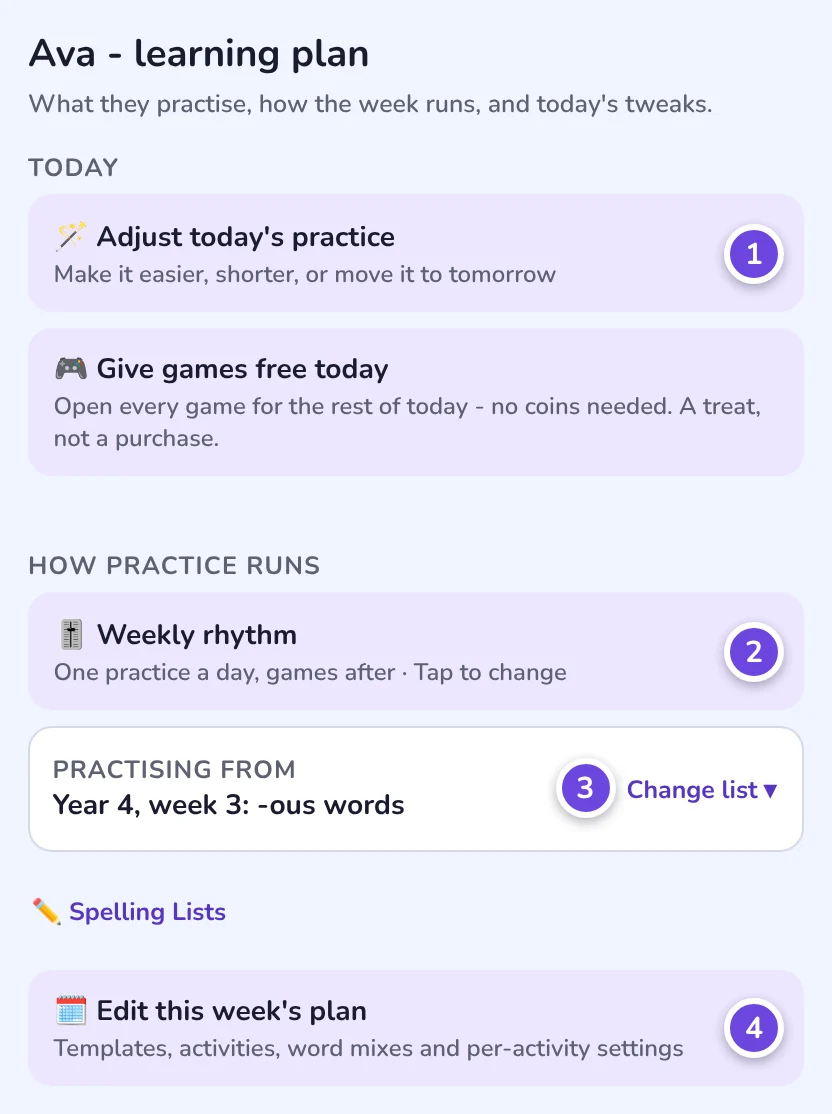
Choose the modes your child sees, and how much help they get when a word goes wrong.

Pick it, Write it, Type it and Say it: the four ways a child answers, and how to choose between them.
Every word your child practises is said aloud, and they answer in one of four ways. A wrong answer brings a little help and another go. Writing the word by hand, with no help, is what shows a spelling is secure.
Choose the modes your child sees, and how much help they get when a word goes wrong.
Know what each mode measures, so you can read a pupil's progress and set the right practice.
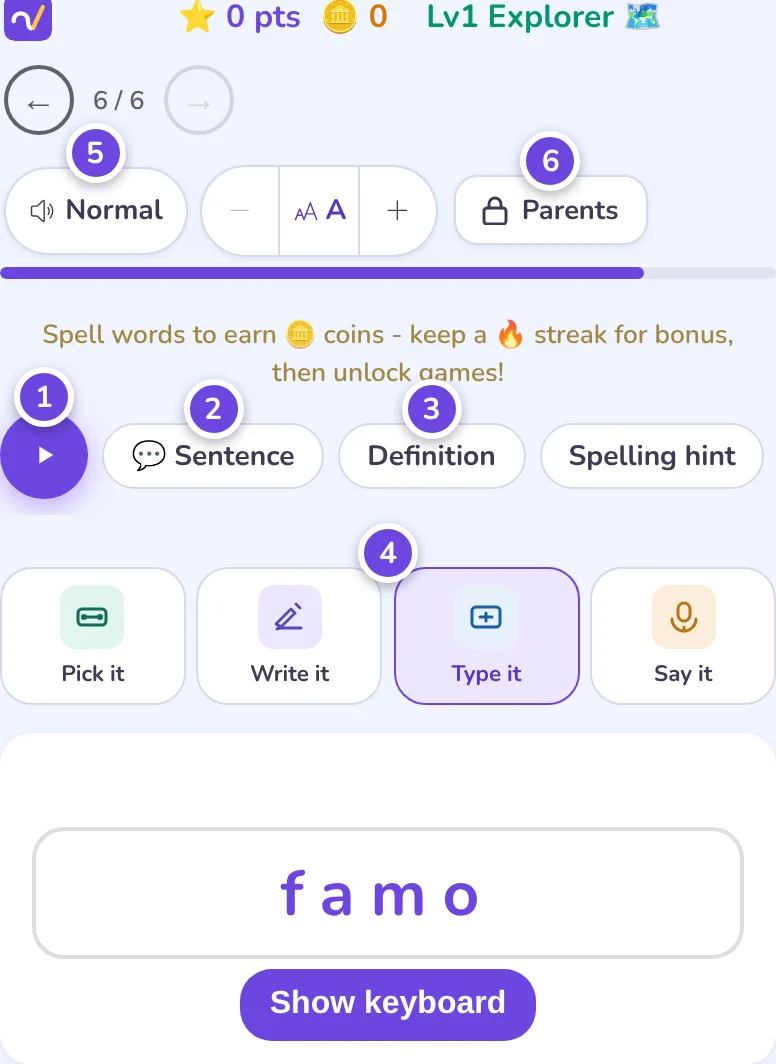
They tap a mode at the top of the practice screen. Nothing here needs setting up before they start.
 Warm-up
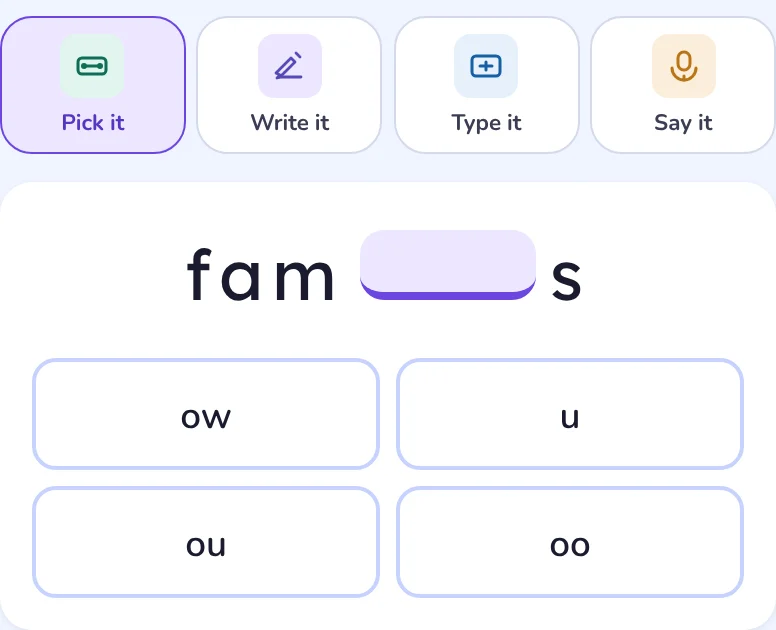
Choose the right spelling. By default the word is shown with its tricky letters missing, and the choices are spellings children really get wrong.
Good for: a new list, younger children, building confidence.
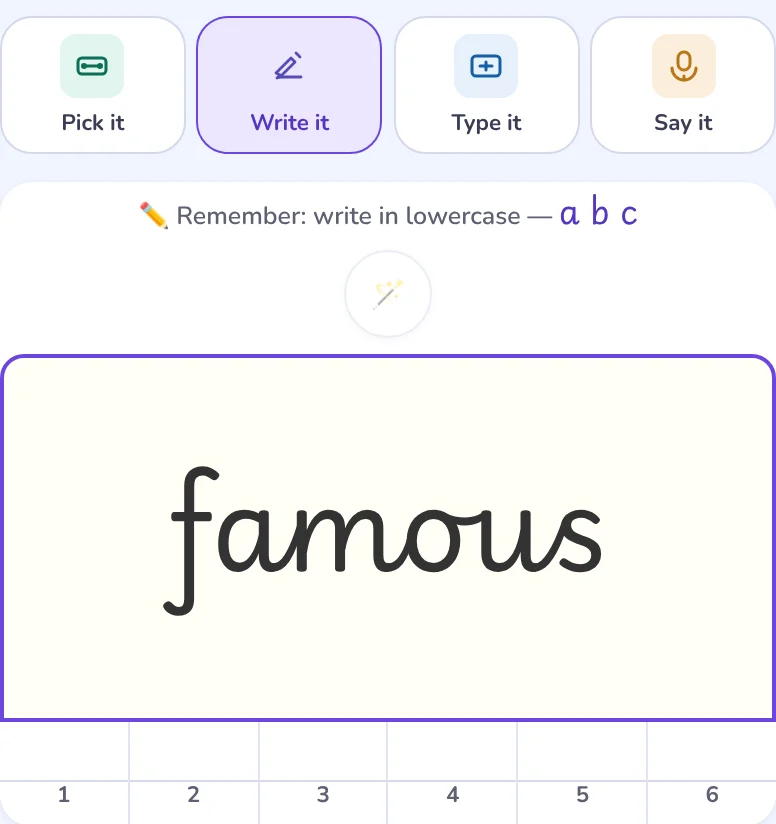 Closest to a real test
Write the word on the pad with a finger or a stylus. We read the handwriting and mark it straight away.
Good for: spelling tests, 11+, making spellings stick.
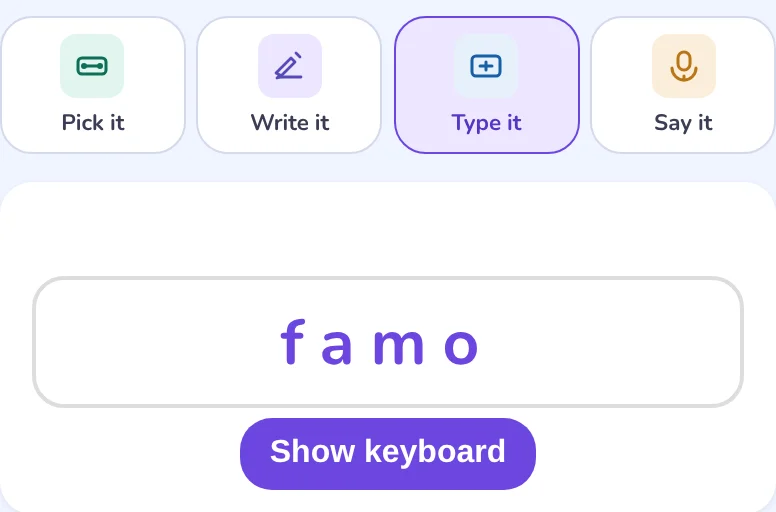 Quickest
Type the word on a keyboard, or on the on-screen keyboard on a tablet.
Good for: daily practice and short sessions, on any device.
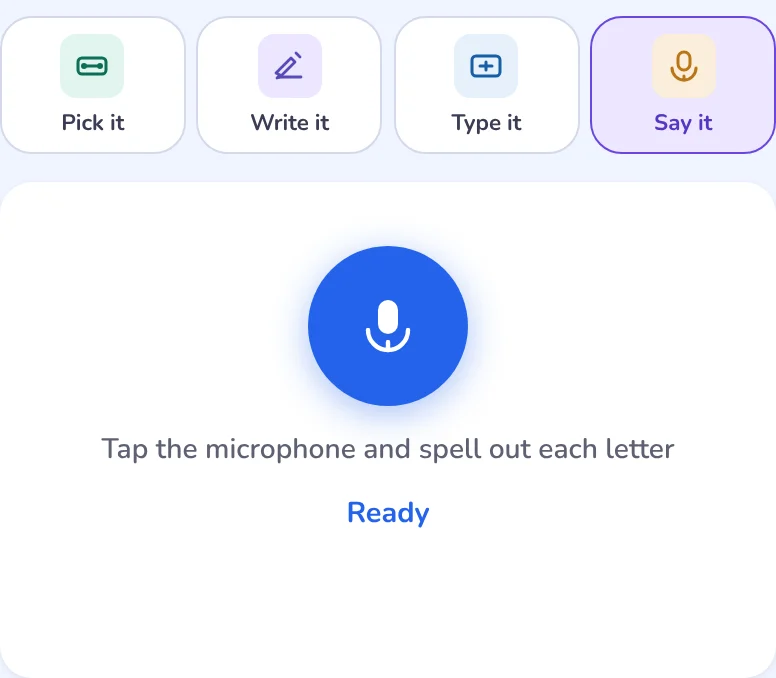 Out loud
Tap the microphone and say the letter names one at a time: "f, a, m, o, u, s".
Good for: children who know a word by sound but find writing it slow.
The first time a word plays, it is followed by its sentence, so your child knows which word is meant. After that, the play button says the word on its own.
For words like wait and weight, the sentence plays every time. The sound alone cannot say which one we mean.
Tap the speed button at the top for Slow or Slower. The voice is British English unless you chose another English for your child.
More on voices and words that sound alike: Audio & homophones.
In Type it and Write it practice, a wrong answer is not the end of the word. Help comes in a step at a time, and your child tries the same word again.
The first try is always on their own. This is the standard pace.
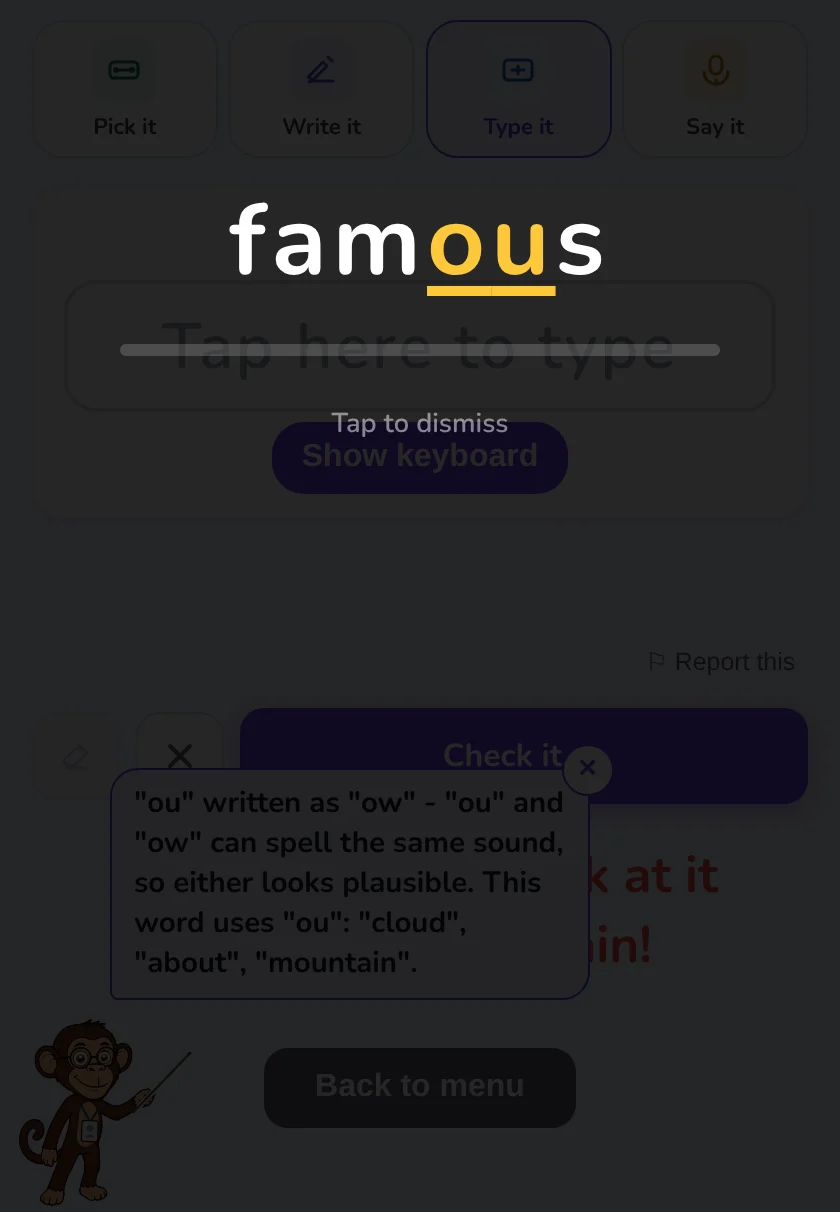 See it again
The word flashes up and is read aloud, with the tricky part picked out.
See it again
The word flashes up and is read aloud, with the tricky part picked out.
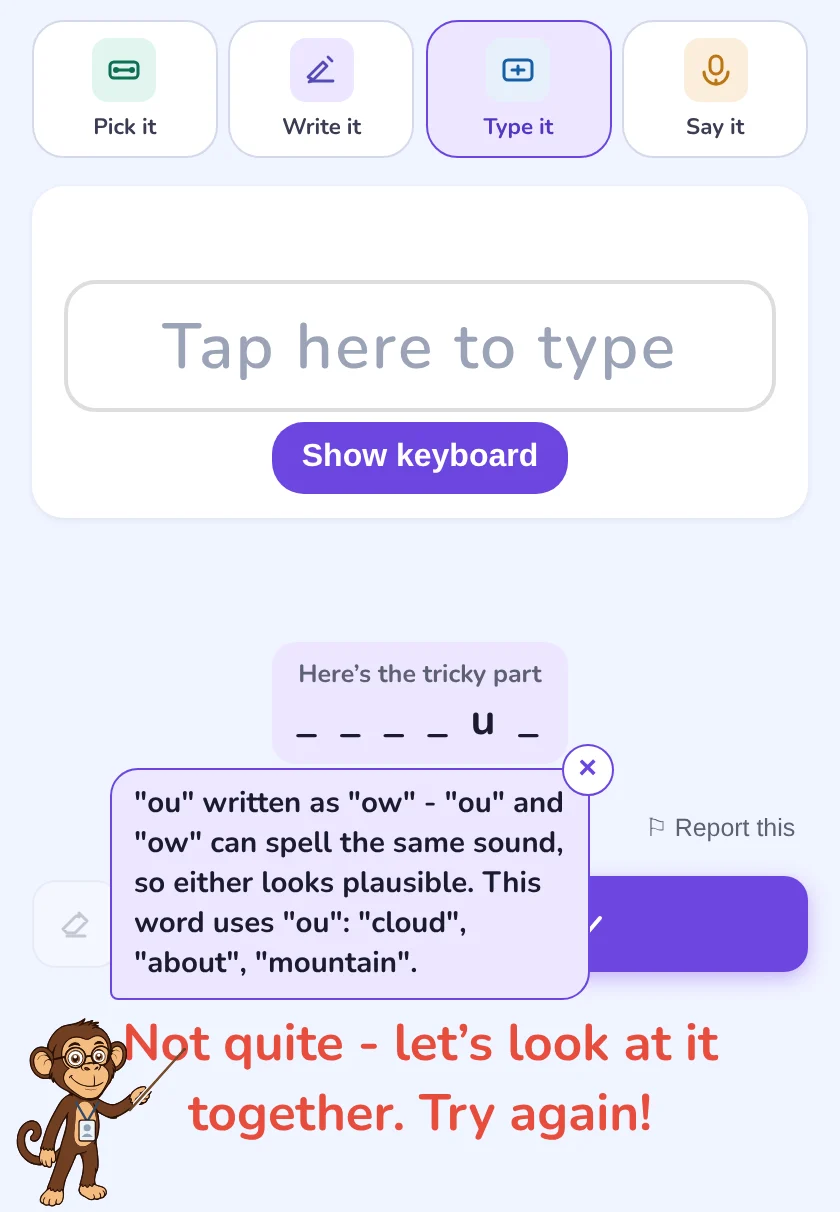 The tricky letters
Only the letters they got wrong are shown. The rest stay hidden.
The tricky letters
Only the letters they got wrong are shown. The rest stay hidden.
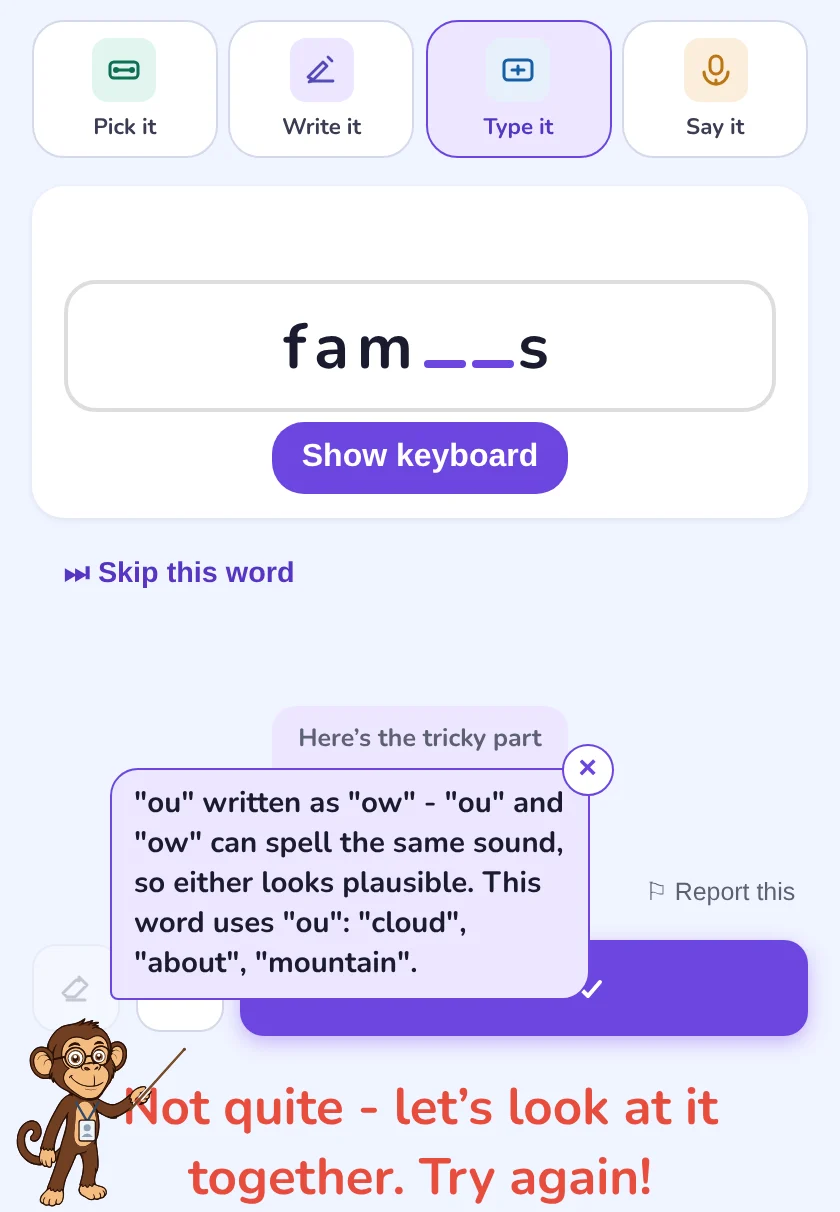 Fill the gap
Most of the word is given. They put in just the missing letters. Skip appears.
Fill the gap
Most of the word is given. They put in just the missing letters. Skip appears.
In Write it the steps are the same. At "Fill the gap", the writing pad prints the rest of the word and your child writes only the missing letters.
In your child's settings, under How they practise, then "Help when stuck".
The word flashes up again (look, cover, write). Best for younger children meeting a word for the first time. This is the setting we start with.
Tongo says what went wrong and what to look out for, and the word is never flashed. They spell it from memory, which suits a child who already knows most of the word.
One go per word. A wrong answer shows the spelling and moves on.
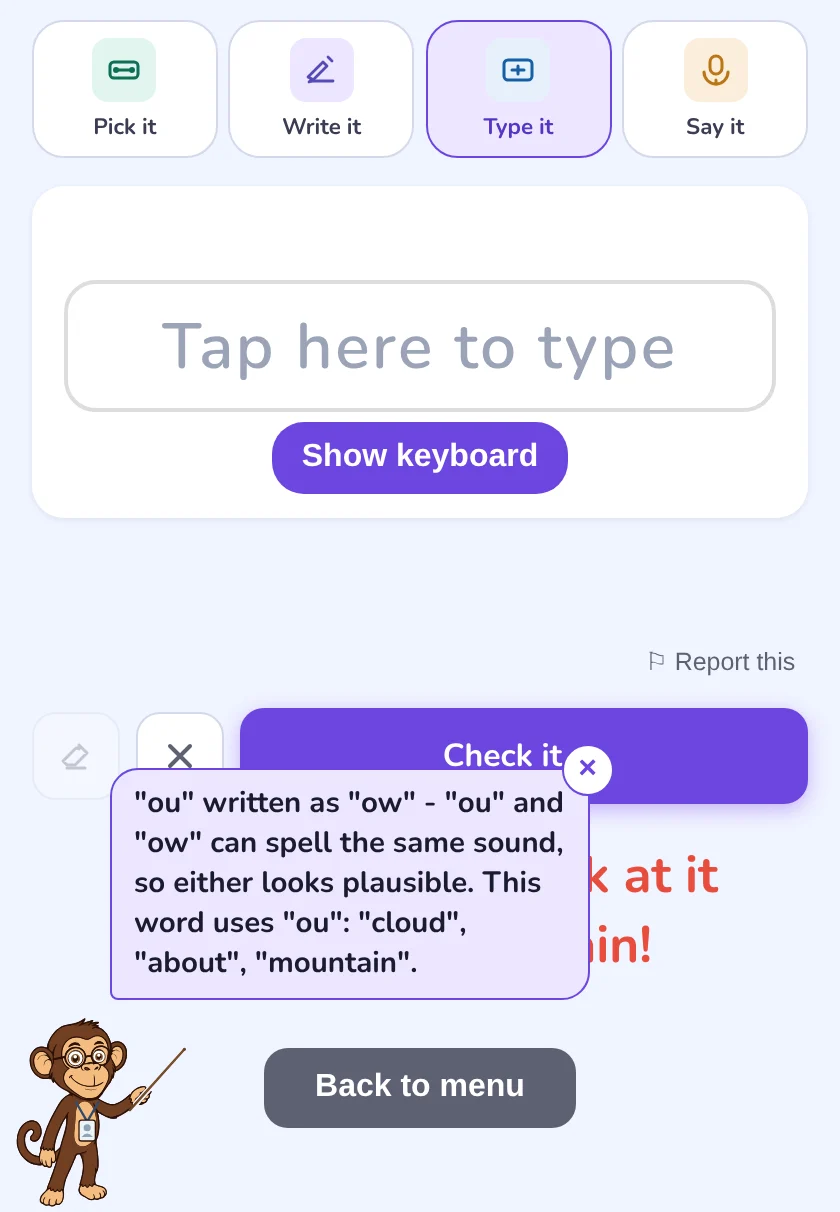
Under "How quickly help steps in". It changes when help comes, never what it is.
For a child who gets upset when stuck. Skip comes sooner.
Where everyone starts.
For a confident child. The first retry is on their own.
"See it again" means Tongo's tip instead if you chose Coach it.
Counts as known. The word comes back later, and the gap grows each time they get it right.
Counts as right, and the report says "Correct after 3 tries". The word comes back tomorrow, because getting it with help is practice, not proof they know it.
Counts as a miss. The word comes back tomorrow.
Each wrong try still feeds the Patterns report, so you can see which spelling rule is catching them out.
No help in tests. A Skills Check, a plan's test day and the "Check yourself" activities give one go per word, so they show what your child can do on their own. Pick it and Say it do not use these steps either.
On a Learning plan, tap the cog on an activity and set "Help when stuck" for that activity only. Everything else uses your child's own setting.
In your child's settings, under How they practise. Tiles, tracing, Flash and the missing letters all count as help, so a right answer with them is practice rather than proof.
On for every child. Switch it off to choose between four whole spellings instead. Not used in tests.
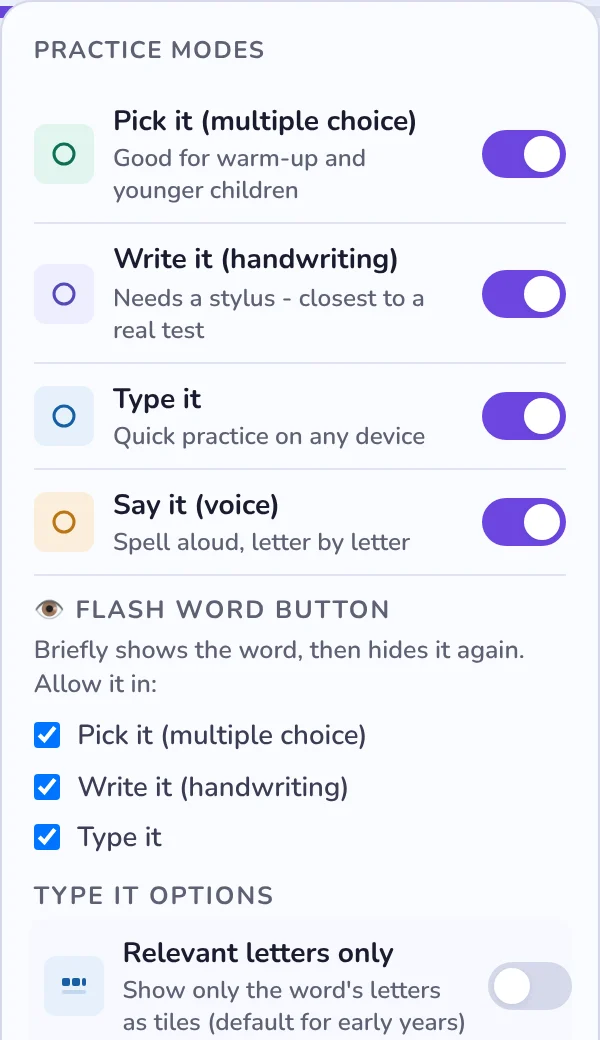
"Relevant letters only" shows just the word's letters as tiles to put in order. On for early years to start with.
For early years: ruled lines on the pad (on to start with) and faint letters to trace over (off).
A 👁️ Flash button shows the word for 1 to 8 seconds, then hides it: look, cover, write, check. Choose which modes allow it in the Parents menu.
Most children write with a finger, and we read it. A stylus helps with neater letters, especially on a phone.
An Apple Pencil, a Samsung S Pen or another active stylus. A rubber-tipped stylus works like a finger. A mouse is not recommended.
The eraser rubs out a mistake. ✕ clears the pad. If writing reaches the right-hand edge, we say "Running out of room" so they can start again a little smaller.
Why it matters: school spelling tests and the 11+ are written by hand, so Write it is the closest practice to the real thing.
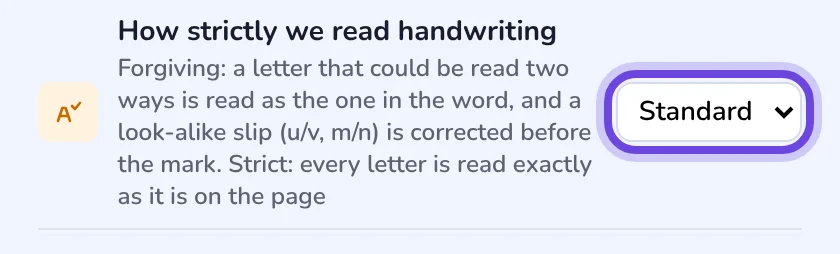
Marking is always exact: the word they wrote has to be the word they were asked for. What you choose is how generously we read their letters.
We know which word they were asked for. A letter that could be read two ways is read as the one in the word, and look-alike slips (u and v, m and n, i and l) are put right before marking. A wobbly letter is not a reason to ask them to write it again.
We read what is on the page without being told the word, so we never fill in a letter that is not there. If we are fairly sure, we ask "We read ... Is that what you wrote?". If we cannot read it, we ask them to write it again.
Like Standard, but a letter that could be two things is never given the benefit of the doubt. Good for a child getting ready for a written test, where a v that should be a u would be marked wrong.
If you ticked Gentler feedback when you added your child, they already start on Forgiving.
Even Forgiving never adds, drops or swaps letters round. sihg is never read as sight, so the mark still means what it says.
"That's not what I wrote" is there after a wrong mark in practice. The try is given back and does not count against them.
Your child's settings, then Support & access.
Every answer is saved. What changes is how much it tells us about a spelling rule your child is learning.
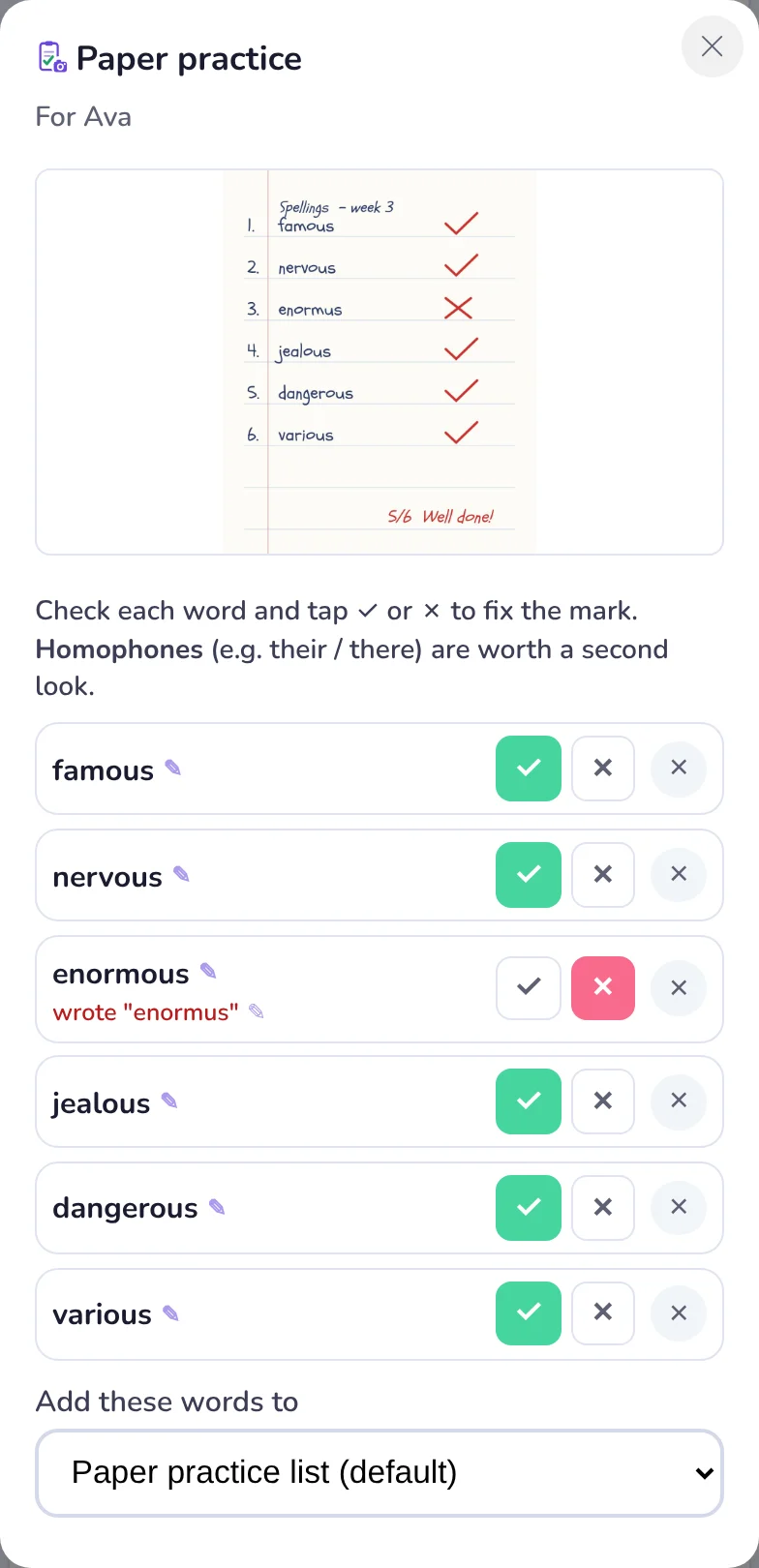
Words written with no help, on screen or on a photographed sheet. A rule shows as Secure once they have written three different words with it, on at least two days.
Real spelling from memory, but not written unaided. Typing alone can take a rule to Practised, never Secure.
Spotting the right spelling is easier than producing it. It shows in the word's right and wrong count, but not in spelling rules.
See where each rule stands on the Curriculum tab: Spelling patterns.
Sometimes the mode is chosen for you. On a Learning plan day the activity sets the mode and the other buttons are greyed out. A Skills Check offers only Write it and Type it.
No. Write it works with a finger on a phone or tablet. A stylus such as an Apple Pencil or S Pen helps with neater letters.
Write it, with no help. It is the only screen mode that can show a spelling rule as Secure, because it is the closest to writing the word in a test.
It asks your child to choose just the tricky letters, from spellings children really get wrong. To choose between whole words instead, turn off "Choose just the missing letters" in their settings.
Yes. Open the Parents menu on the practice screen and switch the mode off. It disappears from the mode bar for that child.
A Learning plan activity sets its own mode, and a Skills Check offers only Write it and Type it. The mode bar opens up again in ordinary practice.
It counts as right, and the report shows how many tries it took. The word comes back the next day, because getting it with help is practice, not proof.
No. The recording is turned into letters and then discarded. Only the letters are kept, as their answer.