
Drafted with AI assistance and reviewed, fact-checked and edited by hand before publishing - see our AI transparency page for how we use AI across the app.
Every class teacher knows the problem. One spelling list on Monday, thirty pupils, and at least three different needs in the room. One pupil needs shorter words, a calmer screen and more time. Another finished last week's list in two days and wants something that actually stretches them. Everyone in between needs the list set, practised, tested and marked without eating your weekend.
This is probably the question we are asked most by teachers and SENCOs: how do I differentiate spelling in a real class without running three schemes? This post shows how to do it in Spelling.Live using groups, learning plans and per-pupil settings. It includes step-by-step guides you can follow with a class open in front of you.
We want to be straight about what this is. Spelling.Live is a spelling practice and marking tool. It is not a dyslexia intervention, and it does not diagnose anything. What it does is make the differentiation you already plan easier to run, and show you which spelling patterns are still causing trouble.
The idea: one class, three layers
Differentiating spelling well usually means changing three things, not one:
- The words. Which list each pupil practises.
- The support. How the screen looks and sounds, and how help arrives when a pupil is stuck.
- The route. How often, how hard, and what counts as secure.
In Spelling.Live those are three separate controls, so you can change one without disturbing the others:
- Groups decide who gets which list.
- Per-pupil settings decide the support.
- Learning plans decide the route through the week.
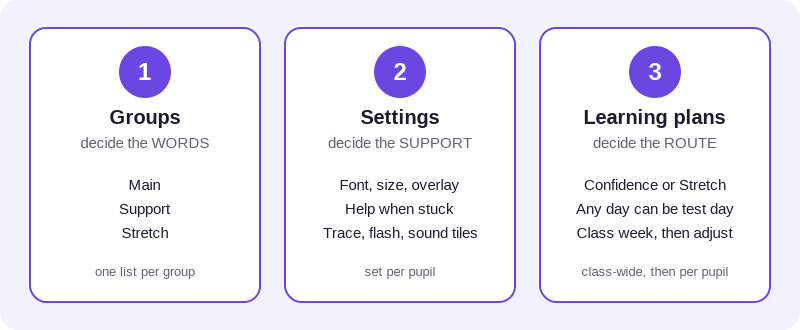
Layer 1: groups decide the words
A group is a named set of pupils inside a class, for example Main, Support and Stretch. Groups are only a quick way to tick the right pupils. Nothing else in the class changes, so reports, plans and class weeks all still work as one class.
Guide: set up groups in two minutes
- Open your class and go to the Class list tab.
- Under Groups in this class, choose New group... and type a name, such as Support.
- Tick the pupils who belong in it and tap Save group.
- Repeat for your other groups. A pupil can be in more than one group, so you can also keep a SEN group or one group per house.
To change a group later, choose it from the same list. Its pupils are ticked for you. Tick anyone who should join, untick anyone who should leave, and tap Save group again. Rename and Delete group sit beside it, and deleting a group never removes a pupil from the class.
Guide: give each group its own list
- Go to Assign list and make or choose the list for your first group.
- Under Give to, choose Choose pupils, then tap the group's button, such as Support (6). Exactly those pupils are ticked.
- Choose Start this week to begin straight away, or Queue for a later week to line it up.
- Repeat for the next group with its own list.
The same Select a group button appears on every picker. That includes printing login labels, applying a class week, printing practice packs, and the term plan. You set the groups up once and use them everywhere.
If you do not have a list for each group, you do not have to write them. The weekly scheme has a list for every week of the year following the National Curriculum, and you can pick any year. That matters for the next two sections.
Layer 2: settings decide the support
Every pupil has four sections of settings, and every setting is per child. Changing one pupil's never changes anyone else's, and none of them is visible to classmates.
What helps pupils who find spelling hard
In Support & access you can set:
- Reading font: standard, a clearer font, or OpenDyslexic.
- Text size and spacing: larger text and roomier letter and line spacing, to reduce crowding.
- Colour overlay: cream, blue, mint, rose or grey tints over the practice screen.
- Speech speed: normal, slow or slower for every word and sentence read aloud, always in a British voice.
- How strictly handwriting is read: strict, standard or forgiving. Forgiving gives look-alike letters the benefit of the doubt, such as a u that looks like a v, but never accepts a genuine misspelling.
- Gentler handwriting messages: kinder feedback when writing is checked.
- Calm games: hides streaks, leaderboards and countdown timers in the bonus games. Spelling practice has no timers at all.
Then, in How they practise, you can ease the work itself:
- Help when stuck. Help arrives one step at a time rather than as a red cross. A pupil who gets a word wrong sees another look at it, then the tricky part highlighted and named, then key letters, and they still do the spelling themselves. You can choose a style (a quick look, or a coaching tip about their actual mistake) and a pace, so a pupil who needs help sooner gets it after the first wrong answer.
- Letter bank. A smaller set of letters to type from instead of a full keyboard, often what makes typing possible for a less confident pupil.
- Sound tiles. For a pupil who thinks in sounds, the word is built from its sound chunks and each tile says its sound when tapped.
- Test retries. More goes in a test before the word is marked, so fewer early crosses.
- Writing pad. Guide lines and letter tracing for pupils still forming letters.
Two things are worth knowing. First, these settings do not change how a pupil is marked, apart from the handwriting reading level, so a pupil on OpenDyslexic with slow speech is held to the same spelling as anyone else on their list. Second, words that sound alike, such as wait and weight, are always read in a sentence, so a pupil is never guessing which word you meant.
Guide: set a pupil's support in five steps
- Open the pupil's card and tap Settings.
- In Support & access, choose the font, text size, spacing and overlay, and check the live preview.
- Set speech speed and, if handwriting is a barrier, how strictly handwriting is read.
- In How they practise, set Help when stuck and the pace, then add a letter bank or sound tiles if typing or sounds are the hurdle.
- Run a Skills Check from their learning plan ("Check where they are"). It is pitched at their school year and shows which spelling patterns are secure and which are not, so practice starts at the right level rather than at this week's hardest list.
If a pupil's own parent has joined, they can see reports and practise as their child. They cannot change the pupil's settings or weekly plan: that stays with the school.
Scaffolding that fades: the aid ladder
The idea underneath most of these settings is scaffolding: give a pupil just enough help to succeed, then take it away. The risk with any support is that it quietly becomes the task. A pupil who is shown the word every time is copying, not spelling. So help in Spelling.Live is built to arrive in steps and to leave a record of what was used.
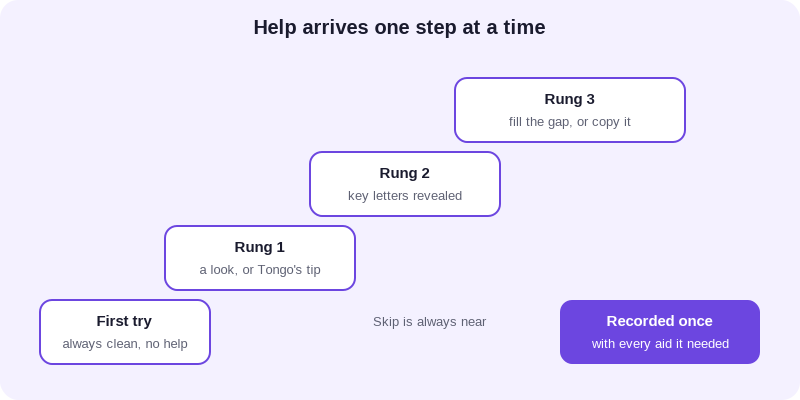
This is the aid ladder, and it works like this in Type it and Write it practice:
- The first try is always clean. No help, so you see what the pupil can really do.
- Each wrong answer climbs one rung, and the pupil retries the same word. Rung one is either Show the word (a quick look, then write it from memory) or Coach it (Tongo, the app's mascot, explains the actual mistake, such as "ou" written as "ow", and the pupil retries from memory).
- Rung two reveals key letters. These are picked from the difference between what they wrote and the target, never more than half the word.
- Rung three is the biggest scaffold. In Type it the pupil fills a gap in a word that is mostly shown. In Write it they can see the whole word to copy.
- Skip is always near the top, so a stuck pupil is never trapped.
The word is then recorded once, with every aid it needed. There is also a pace setting, so a pupil who needs help sooner gets it after the first wrong answer, and one who needs more room gets it later. The pace changes when help arrives, never what the help is.
Here is what the rungs look like on screen for the word famous, where the common slip is writing "ow" for "ou":
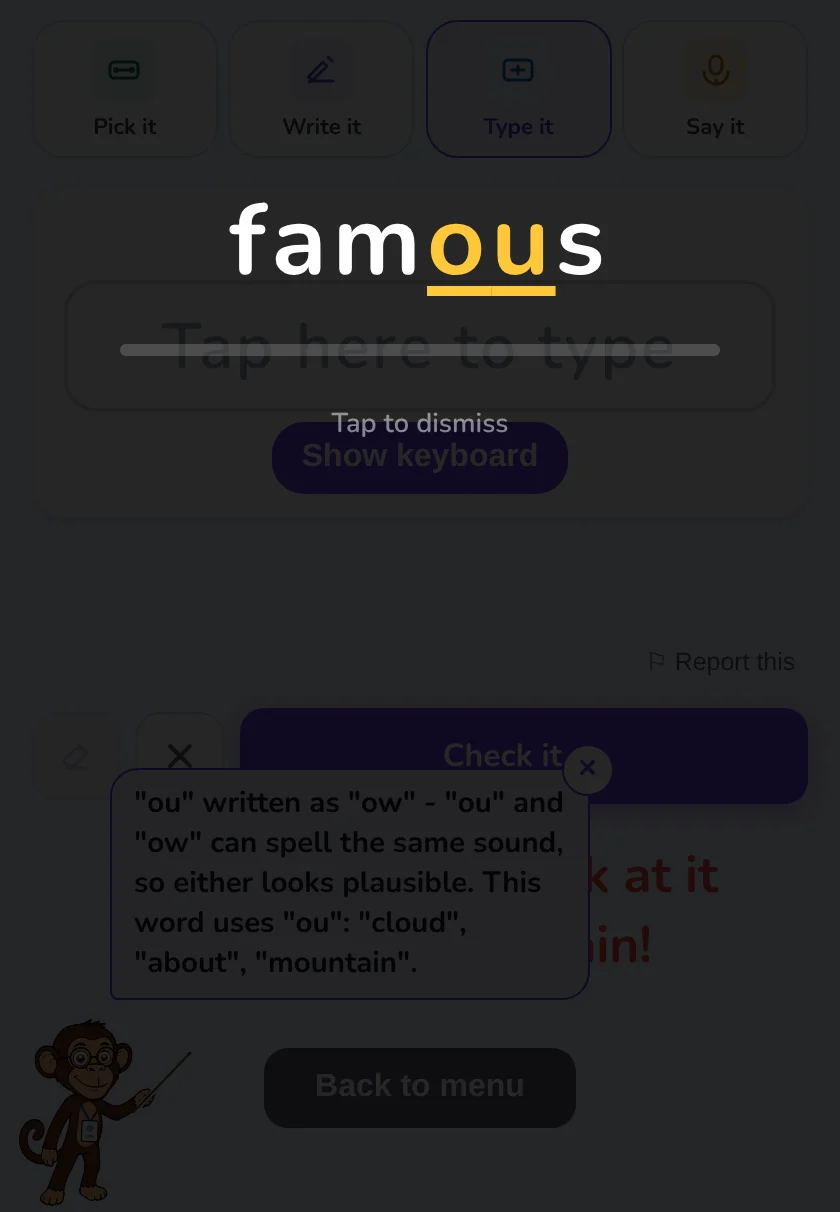
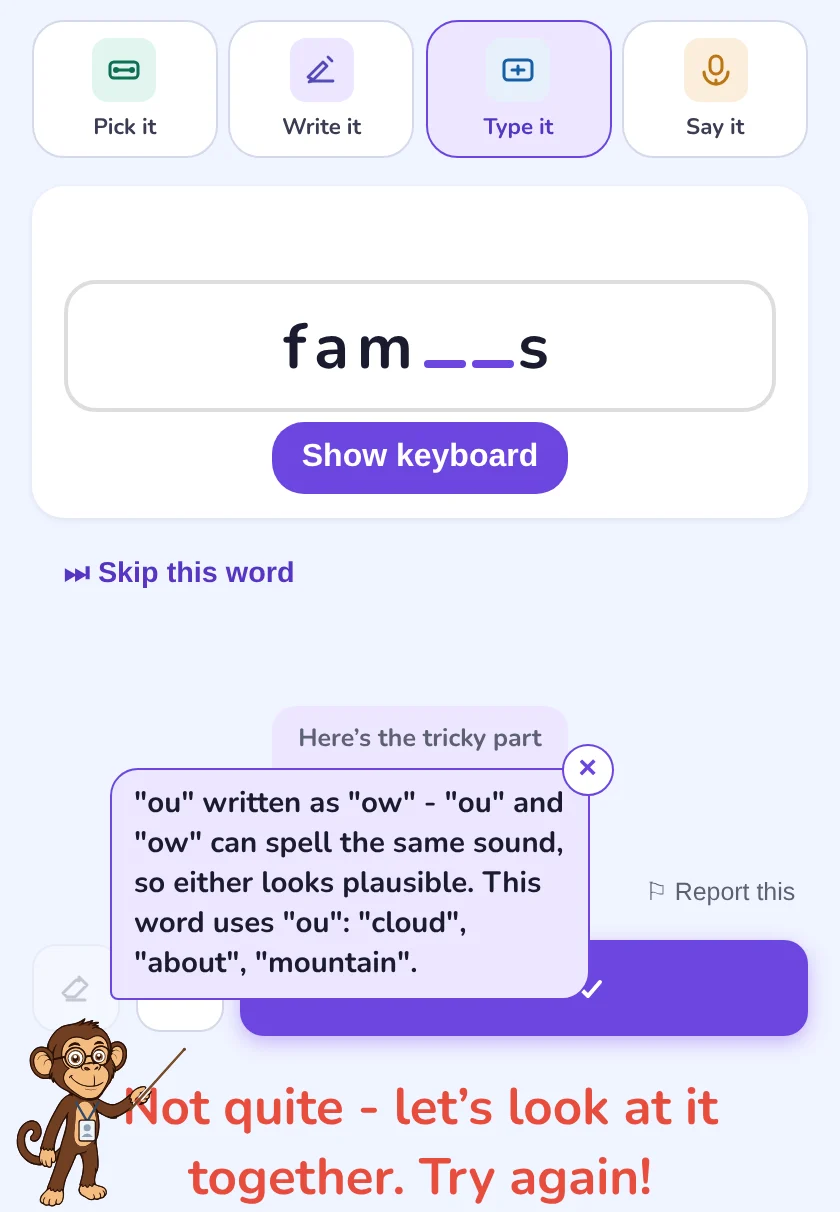
Four tools sit inside or alongside the ladder, and each suits a different pupil.
Flash. Shows the word large for a few seconds, then hides it, so the pupil looks, covers and writes. The time can be shortened as the word becomes familiar, so the help fades rather than vanishing overnight. It is the look-cover-write-check method many classrooms already use, set per pupil.
Trace overlay in writing. On the Write it pad, guide lines and a faint trace of the word sit under the pupil's pen, with a "worksheet" look available. It helps a pupil who is still forming letters to attempt the word at all. When a pupil copies the word, the attempt is recorded as traced, so it is counted as practice, not as recall.
Phonics-based typing (sound tiles). For a pupil who thinks in sounds, the word is built from its sound chunks, such as sh, igh and a-e, instead of single letters, and each tile says its sound when tapped. There are two modes. In order shows only that word's chunks, for a hard day. Mixed in shuffles them and adds look-alike spellings of the same sound (ai, ay, a-e), so choosing the right spelling is the task. A word is only offered as sound tiles when its chunks rebuild it exactly, otherwise the pupil gets the plain letter bank.
Letter bank and fill the gap. A smaller set of letters to type from, and a word mostly shown with only the tricky part missing. Both lower the barrier to typing without turning the word into a copy exercise.
What Kaya and Aarav taught us about scaffolding
These features came from two very different children at home, not from a checklist. Our founder's daughter Kaya has Down syndrome, a moderate learning disability and difficulties with mobility. His son Aarav always passed the Friday test and then got the same words wrong weeks later. You can read both stories on our about page.
Kaya is a strongly visual learner and asks for the picture before anything else, so every word can start with a picture clue and no mode has to come before another. On a hard day she does Pick it and stops, and nothing treats that as failure. Flash, a trace overlay, a slower voice and a shorter keyboard are each the difference between a task she can try and one she cannot. When the app marked one of her dictation pages, the score of 2 out of 5 mattered less than what she wrote: rock for sock, lock for back. The endings were secure and the first letter was the problem. That is something a teacher or teaching assistant can act on.
Aarav shows the other side of scaffolding. He did well whenever he knew which words were coming. What changed things was spaced repetition, with missed words returning weeks after the test, and meeting each word in more than one way. When he wrote insistant for insistent, the app named the rule (-ent and -ant sound the same, so the wrong one is easy to pick). That is a fifteen-second conversation instead of a re-test.
The lesson for a class is that the same toolbox serves both ends. Kaya needs the help to stay long enough for her to try. Aarav needs the help to fade and the words to come back later. A pupil's profile is not a label; it is a set of dials, and you can turn them up or down as the evidence changes.
Layer 3: learning plans decide the route
A learning plan is the week behind a pupil's Today's practice button: which activity, which day, and which words. Most classes can run a class week for everyone and then adjust the few pupils who need something different.
Guide: run one class week, then adjust
- Open the Class week card on the Class list tab and choose a week. For example, the Cold and hot test week tests on Monday, practises Tuesday to Friday, and starts the next list on its own the Monday after.
- The pupils it suits are ticked for you. A pupil who already has their own week, or whose parent changed it, is left unticked with the reason beside them.
- Press Apply.
- For a pupil who needs a different shape, open their plan with Edit this week's plan. You can move activities between days, add a rest day, change how they answer (typing, writing or paper), and change the words an activity uses.
Three controls matter most for differentiation:
- Any day can be the test day. A pupil who is tired on Fridays can test on Wednesday instead.
- Which words. In an activity's cog you can choose this week's list, last week's list (for a hot test), or one of the pupil's own lists.
- A change is for this week only, unless you save it. This stops one pupil's adjustment quietly spreading to the class.
For the pupil who finds it hard: set the goal to Confidence
In How they practise, set their goal to Confidence. The week is built around words they can get right, with harder ones coming in gradually. Keep sessions short. Five to ten minutes a day is plenty, and missed words come back automatically a few days later, so nothing is lost by stopping early.
Stretching greater depth pupils
Differentiation is not only for pupils who are behind. A pupil who has mastered this week's list needs a reason to keep going, and a bigger list of the same kind of word is not it. Here is what we would do.
Give them a later year's rules. The weekly scheme lets you choose any year. A strong Year 4 pupil can work from the Year 5 and 6 weeks, while the rest of the class stays on Year 4. Put them in a Stretch group and assign the later list to that group only.
Set their goal to Stretch. For a pupil on Stretch, the plan aims at a rule being secure, meaning unaided written spelling across several different words over more than one day, rather than a high score on one list. Where a week is aimed at a particular rule and has no day where the pupil writes from memory, the plan swaps one typed activity for Write it so that evidence can exist.
Ask what a rule needs, not just what a score is. Spelling.Live shows, for each spelling rule, what a pupil still has to do for it to read as secure. For a greater depth pupil this turns "they got 10 out of 10" into "the -cious rule is practised, and needs three different words written without help".
Move from spelling to using. A pupil can be marked on a paragraph they wrote on paper, where a grown-up ticks which target words were spelled correctly and used well. A rule that is secure and used well in their own writing reads as the top rung, Using it. That is a stronger claim than a spelling score, and it suits a pupil who is already accurate.
Use the word-level activities. Word Parts breaks long words into prefix, root and suffix so a pupil can see why disappointment is spelled the way it is. Word Meanings asks what a word means and which word fits a sentence, which pushes vocabulary alongside spelling.
Guide: set up a Stretch group in four steps
- Create a group called Stretch on the Class list tab and tick the pupils.
- In Assign list, choose a later year's weekly scheme list, then give it to the Stretch group only.
- On each pupil's settings, set their goal to Stretch.
- Check the class report's Patterns view. It shows who still makes each mistake and who is secure, so you can move a pupil in or out of the group as the evidence changes.
Reports that show the aids, not just the score
Scaffolding only works as differentiation if the record is honest about it. A tick that needed three hints is not the same as a tick that did not, and a report that blurs them tells a SENCO the wrong story.
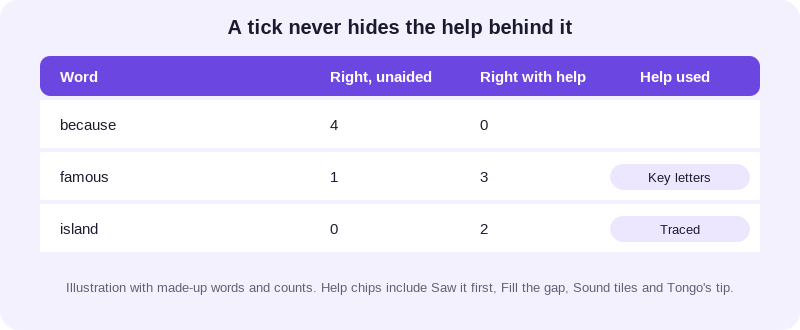
Spelling.Live keeps the two apart:
- Right, unaided and right with help are counted separately in the progress tables. A word that settled correct after a miss, or with an aid on screen, is practice, not recall.
- Help chips name what was used, for example Saw it first, Key letters, Traced, Fill the gap, Sound tiles, Letter bank, Picture and Tongo's tip. In the writing history a teacher can see the handwriting itself, any earlier tries, and which help the pupil had.
- The tries are kept. If a pupil missed a word and then got it right, the earlier tries are recorded with that word, so a "right in the end" is not mistaken for "knew it".
- Spaced repetition respects it. A word that was right only after help comes back sooner than one that was right first time.
For a pupil with an EHCP or a support plan, this gives you something concrete to share: not just "scored 8 out of 10", but "8 out of 10, 5 unaided, 3 with key letters, down from 6 aided last month". It also stops the scaffold hiding a gap. A pupil on sound tiles can be moving well, and the report will still show that those right answers were supported.
Reading the report across groups
Differentiated lists make a single class average meaningless, so the class report is built around patterns and pupils, not one number. The Patterns view names the rule behind each mistake. Ten wrong words often turn out to be two rules, which is something you can teach to a whole group in one lesson. A Group picker filters every view to one of your groups. For each rule, you can see who still makes the mistake, who is now secure, and whether the class is improving on that rule's own words.
The Pupils view sorts by accuracy and by the rule each pupil most needs. If you use the cold and hot test week, the Tests view shows each list's cold score (before practice) and hot score (after), pupil by pupil. That is useful evidence for a SENCO or an intervention review, because it compares a pupil with themselves rather than with the class.
What we are and are not claiming
It is easy to oversell in this area, so here is the plain version.
- We have not run a trial. We do not claim a measured improvement for SEND or greater depth pupils.
- Spelling.Live does not diagnose. The pattern names describe the spelling, not the pupil.
- The adjustments are practical, not clinical. They exist because real children needed them. Our founder grew up struggling with spelling and was not diagnosed with dyslexia until university, and the app was first built for his own children, including a daughter with Down syndrome.
- It sits alongside your provision. Use it as one part of a graduated response, not instead of specialist support.
If you want to see it in your own class, schools can apply for a free pilot, and we will help set up the first class, including importing it from your MIS through Wonde or from Google Classroom.
Quick checklist for your next class
- Groups set up: Main, Support, Stretch (or your own names).
- Each group has its own list, or a scheme year that suits it.
- Support settings set per pupil, with a Skills Check run for anyone new.
- Goal set per pupil: Confidence for those who need it, Stretch for those who are ready.
- Class week applied, with individual pupils adjusted.
- Patterns view checked after a week or two, and groups moved if the evidence says so.
Related guides
- Dyslexia and SEND support in Spelling.Live
- Our story: Kaya and Aarav
- Spelling modes and help when stuck
- Support and accessibility settings
- Helping a child who finds spelling hard
- Your class week, start to finish
- The learning plan
- Teachers: classes, groups and marking
- The weekly spelling scheme
- What secure means in National Curriculum spelling
- Apply for a free school pilot