Spelling Live
← Back to Home

Your class week, start to finish

Choose a week, queue the half term's lists, and let the plan run. The report shows what moved.

The whole week in under two minutes, with a voiceover. The captions are part of the picture, so it also works with the sound off. The class in the video is made up. Download the video.

Overview

You set things up once a half term. After that, each pupil's week runs by itself: a test on Monday, short practice Tuesday to Friday, and the next list starts on its own the Monday after. You read the report.

Who this is for

Class teachers

One spelling list a week for the class. Set it up once and see how each list went.

Tutors

A small group, or pupils whose parents shared them with you. The same steps work for any group.

Intervention groups

Give one group in the class its own lists. Tick just those pupils when you assign and queue.

The week on one page

  1. Set up onceChoose the class week and queue the half term's lists.
  2. Monday: testHot test on last week's list, then cold test on this week's.
  3. Tuesday to Friday: practiseA short practice each day. Missed words come back.
  4. Any time: the report Cold to hot for each list The patterns to teach next

The next Monday, the next list in the queue starts by itself. Nobody has to press anything.

Which week should I use?

Every week works with the queue and the report. The difference is when pupils are tested, and what the report can show you.

Best for seeing progress

Cold and hot test week

Test before practice and after. The report shows the jump for every list.

  1. MonHot + cold test
  2. TueLook & type
  3. WedWrite it
  4. ThuType it
  5. FriPick it
  6. SatCatch up
  7. SunRest
Simplest

Simple Week

Three short practices and a Friday test, like a classic spelling week.

  1. MonType it
  2. TueRest
  3. WedType it
  4. ThuType it
  5. FriTest
  6. SatCatch up
  7. SunRest
Your way

Your own class week

Change any day, then save it as your class week and use it every week.

  1. MonYou
  2. Tuechoose
  3. Wedeach
  4. Thuday
  5. Friand
  6. Satevery
  7. Sunactivity

Pick the cold and hot test week if…

you want to show that practice works. The report gives each list a cold score (before practice) and a hot score (after), pupil by pupil.

Pick Simple Week if…

you already test on Fridays and want the least change. The report still shows patterns, pupils and accuracy from their practice.

Make your own if…

your school has its own routine. Keep the names Cold test and Hot test on your test days and you still get the cold to hot card.

Set it up in four steps

Everything is on your class, under Classes. Do it once a half term.
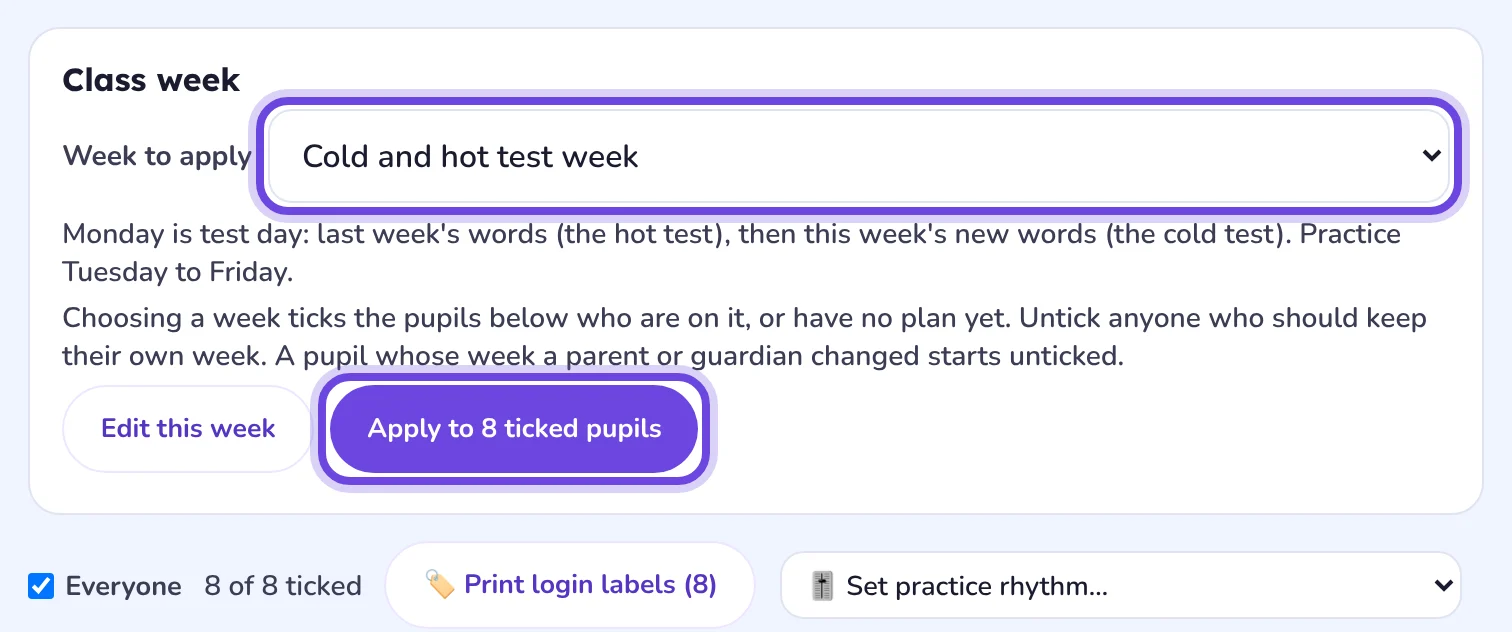
1. Choose the class week

Open your class. On the Class list tab, find the Class week card at the top.
Choose a week. The pupils it suits are ticked for you. Untick anyone who should keep their own week. A reason shows beside anyone left unticked.
Press Apply. Each ticked pupil's week is set. Anything they have already done this week stays done.
The Class week card with Cold and hot test week chosen and circled, its description, and the Apply to 8 ticked pupils button circled.
Choose the week, then Apply. Everyone shows how many pupils are ticked.
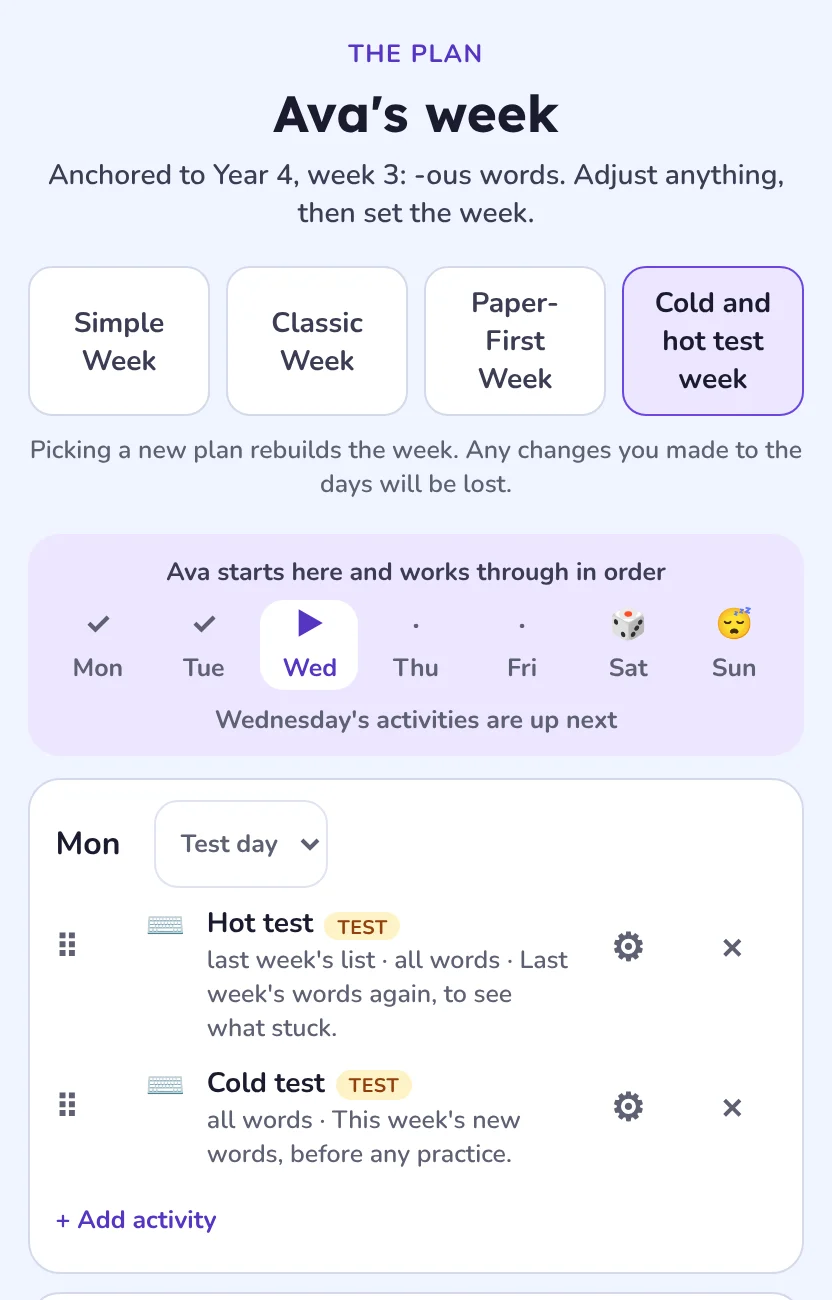
A pupil's week in the plan editor. Monday is Test day, with a Hot test on last week's list and a Cold test on this week's words.
Edit this week shows the days. Change anything, then press Save as a class week to keep your version.

2. Give this week's list

Open Assign list. Choose or type the list, and who it is for: everyone, a group, or chosen pupils.
Choose Start this week under Weekly plan. It becomes each pupil's list for this week.

3. Queue the rest of the half term

Assign next week's list and choose Queue for a later week. Do the same for each week, in order.
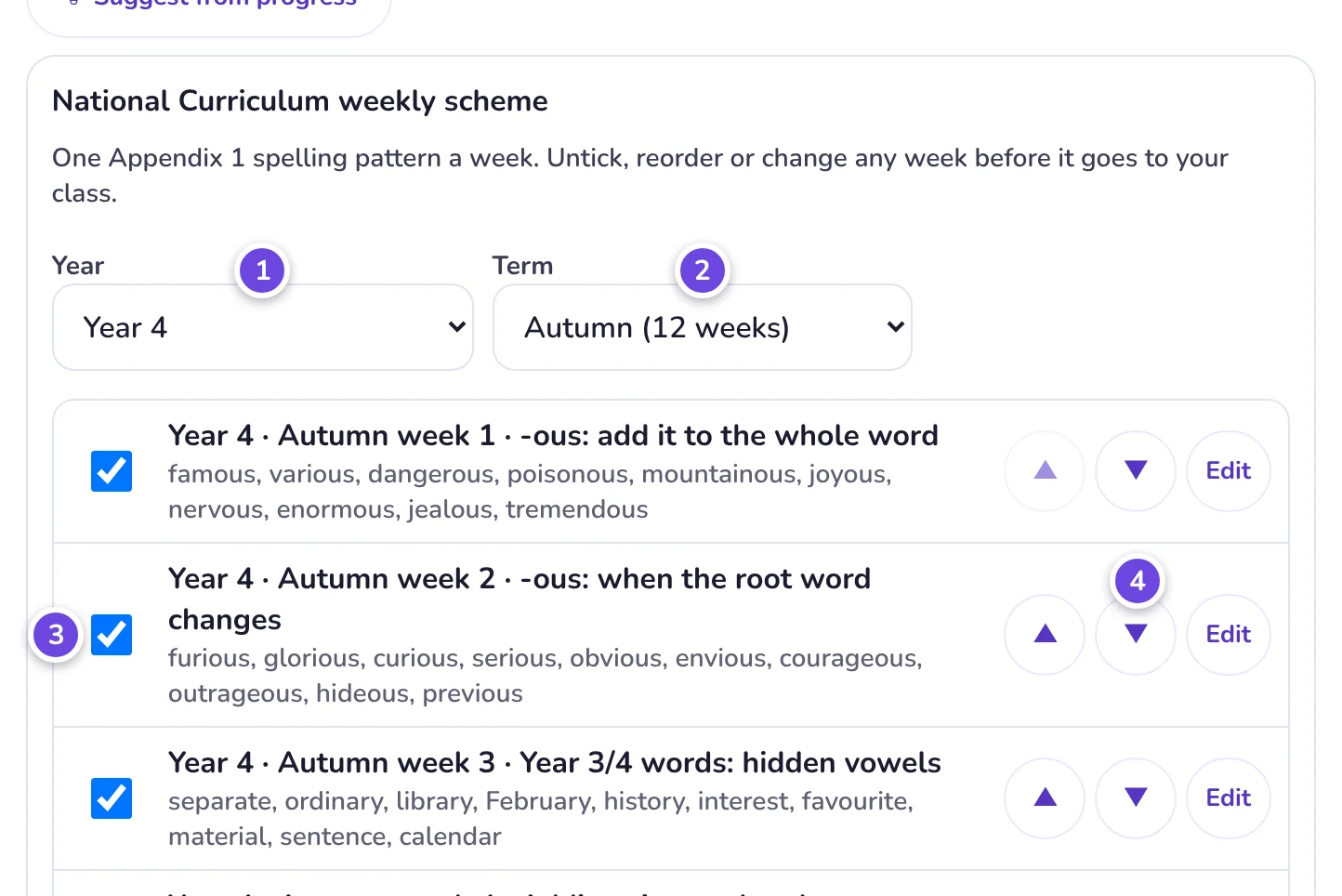
Or use the weekly scheme. Use a scheme loads a whole term of National Curriculum lists: Start week 1 now and queue the rest. See the weekly scheme.
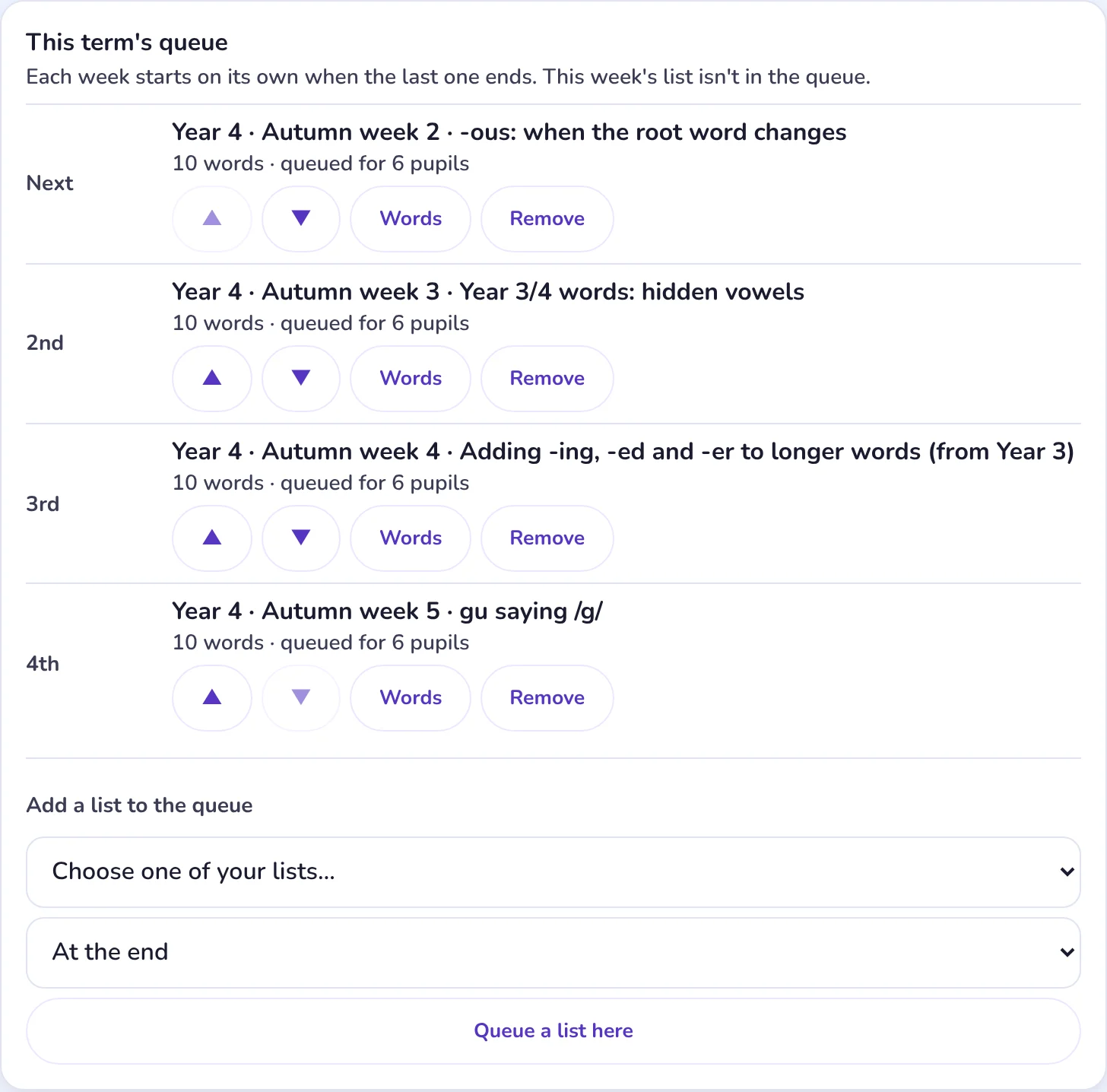
Check the order in This term's queue on the Assignments tab. Move a list up or down, change its words, or remove it.
The Weekly plan choice on Assign list, with Queue for a later week selected and circled.
Queue for a later week: it starts by itself when the pupil's current week ends.
This term's queue, listing four weekly lists in order, each with up and down arrows, Words and Remove.
This term's queue, in the order pupils will get the lists.

4. Monday: run the tests

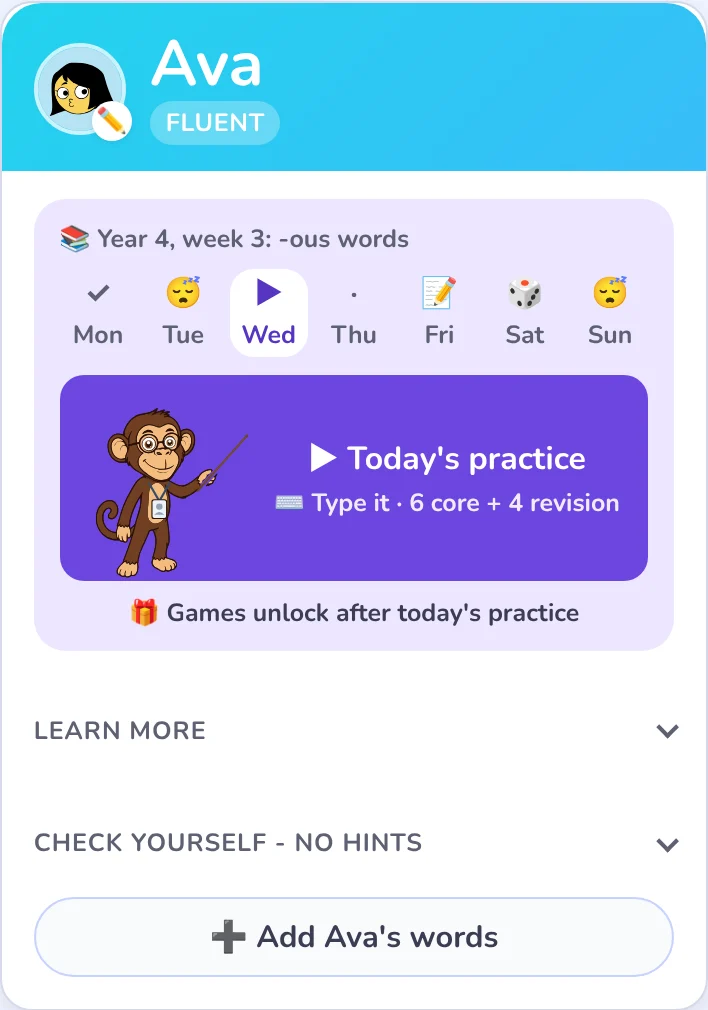
On screen: pupils open Today's practice and do the hot test, then the cold test. No help is given in a test.
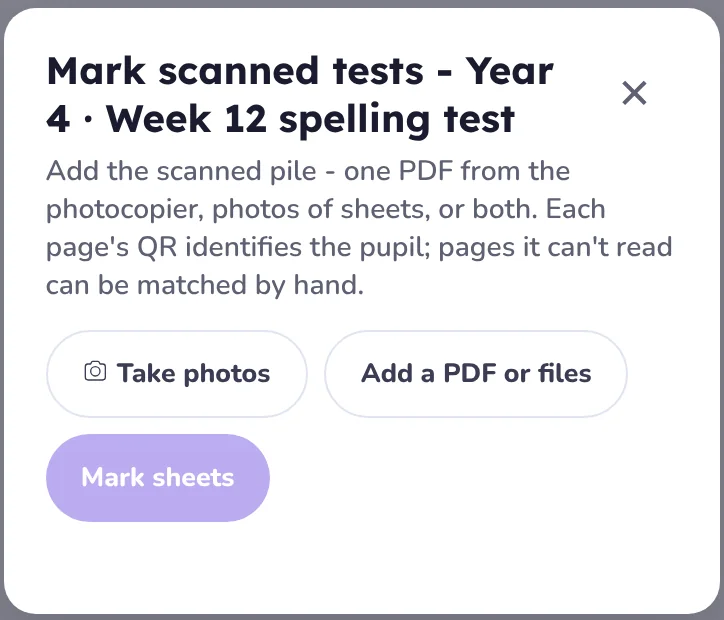
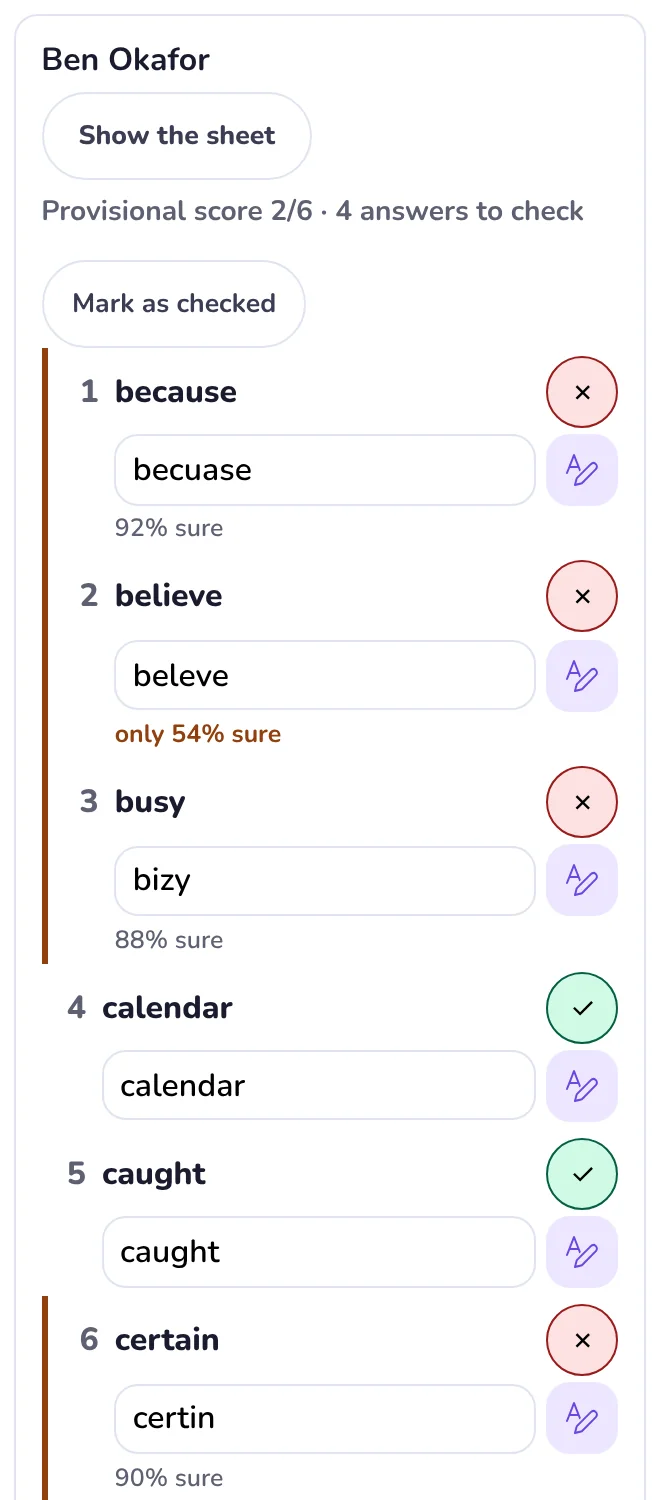
On paper: press Print test sheets on the list's card on the Assignments tab, read the words out, then Mark scanned tests with your phone or a scanned PDF. A scanned sheet counts as the test. A pupil without one takes it on screen. See marking class tests.

The first week has no hot test. There is no last week's list yet, so pupils only see the cold test. The hot test appears from the second week.

Read the report

Open your class and choose the Report tab. The buttons at the top pick a view.

Tests: cold to hot

Each list's score before practice and after, how many pupils improved, the words still tricky, and every pupil's two scores side by side.
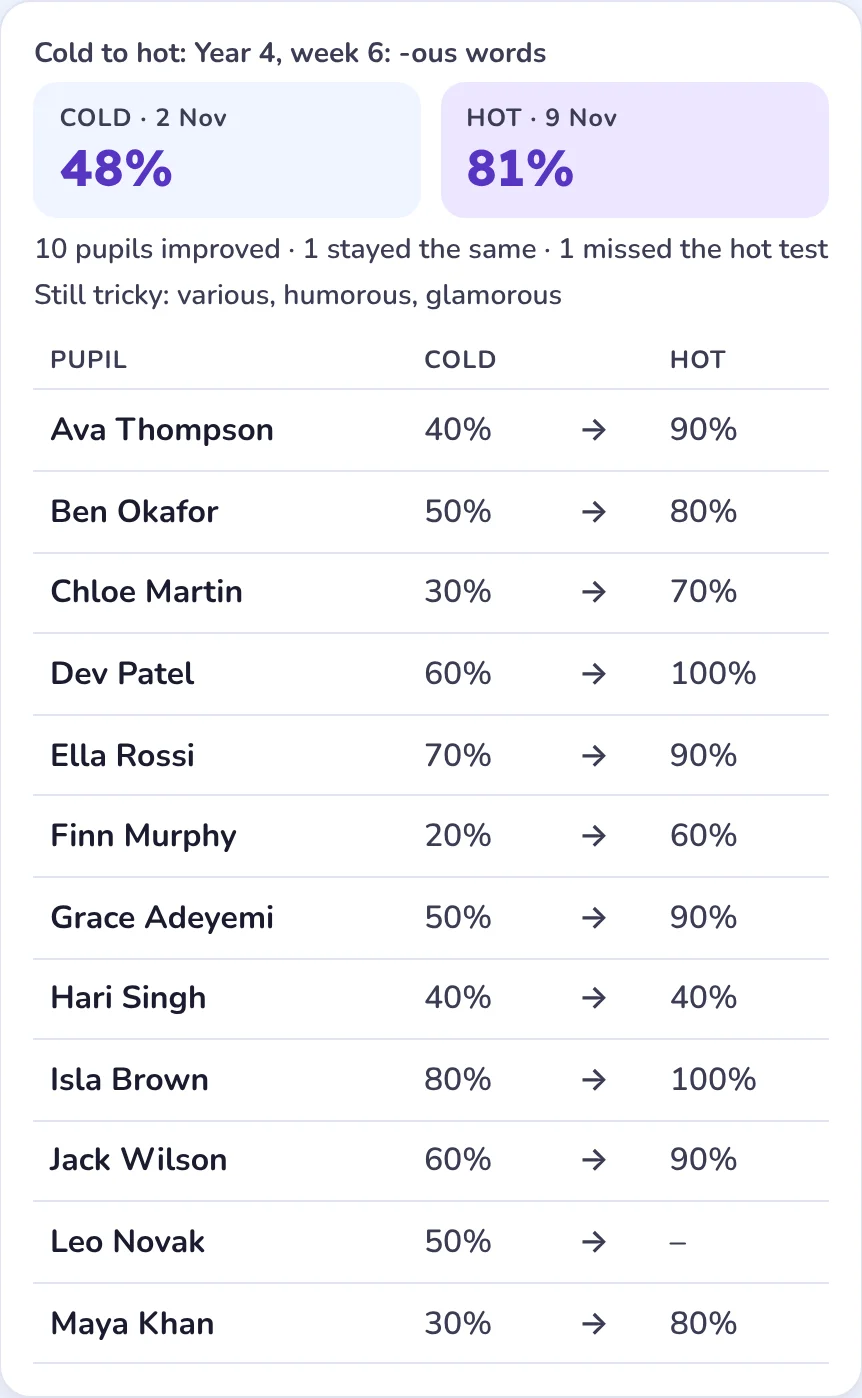
A cold to hot card for the list Year 4, week 6: -ous words. Cold 48 percent, hot 81 percent, 10 pupils improved, still tricky: various, humorous, glamorous, then each pupil's two scores.
The jump from cold to hot is the value of a week's practice, for each pupil.

Overview: this week

Who is practising, how accurate they are, and at most three things that need you.
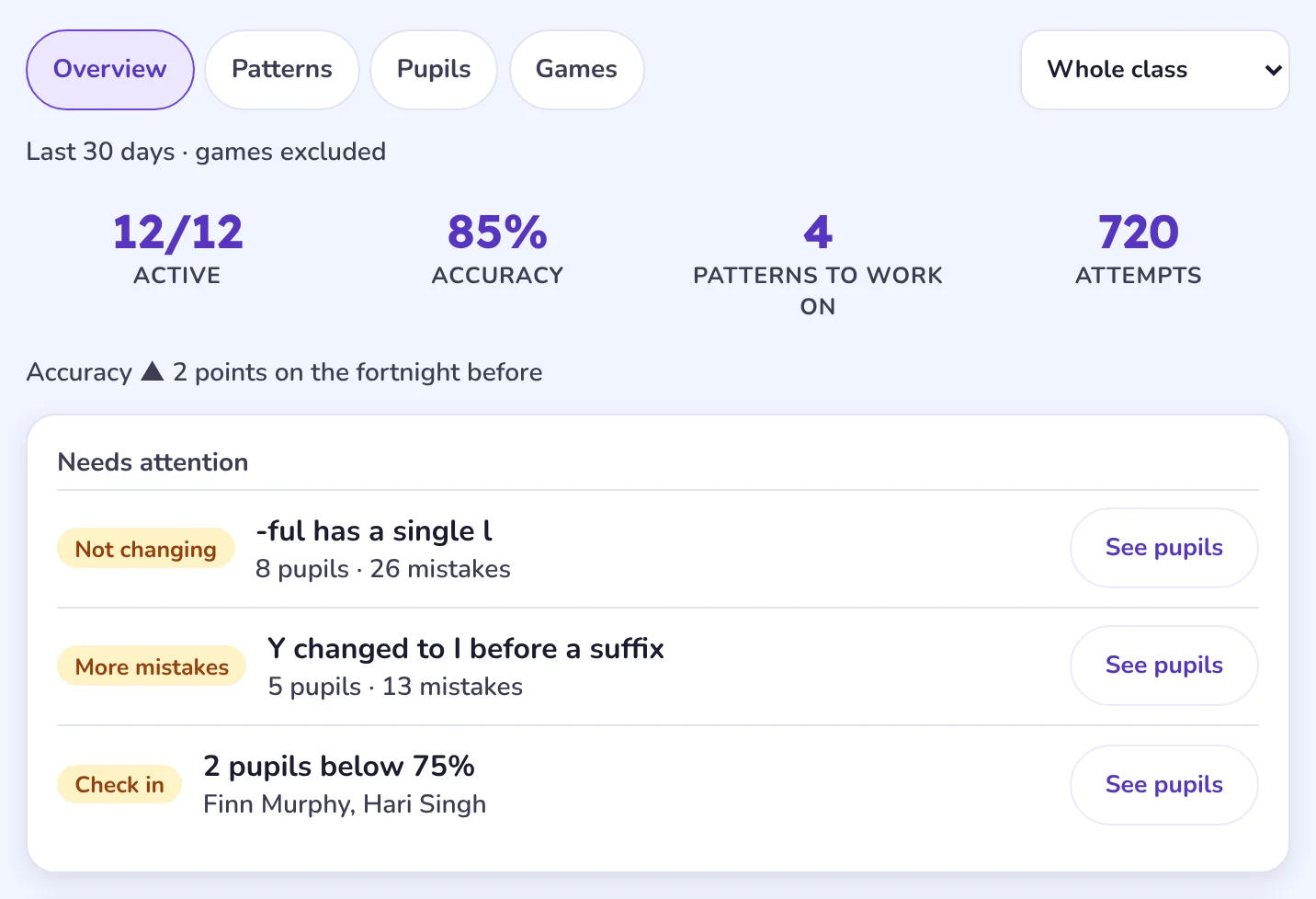
The report's Overview: 12 of 12 pupils active, 85 percent accuracy, 4 patterns to work on, and a Needs attention list.

Patterns: what to teach next

The spelling pattern behind the mistakes, who still makes it, and whether it is getting better. Make a group of those pupils in one tap, or press Create teaching plan on the Overview for a lesson and slides.
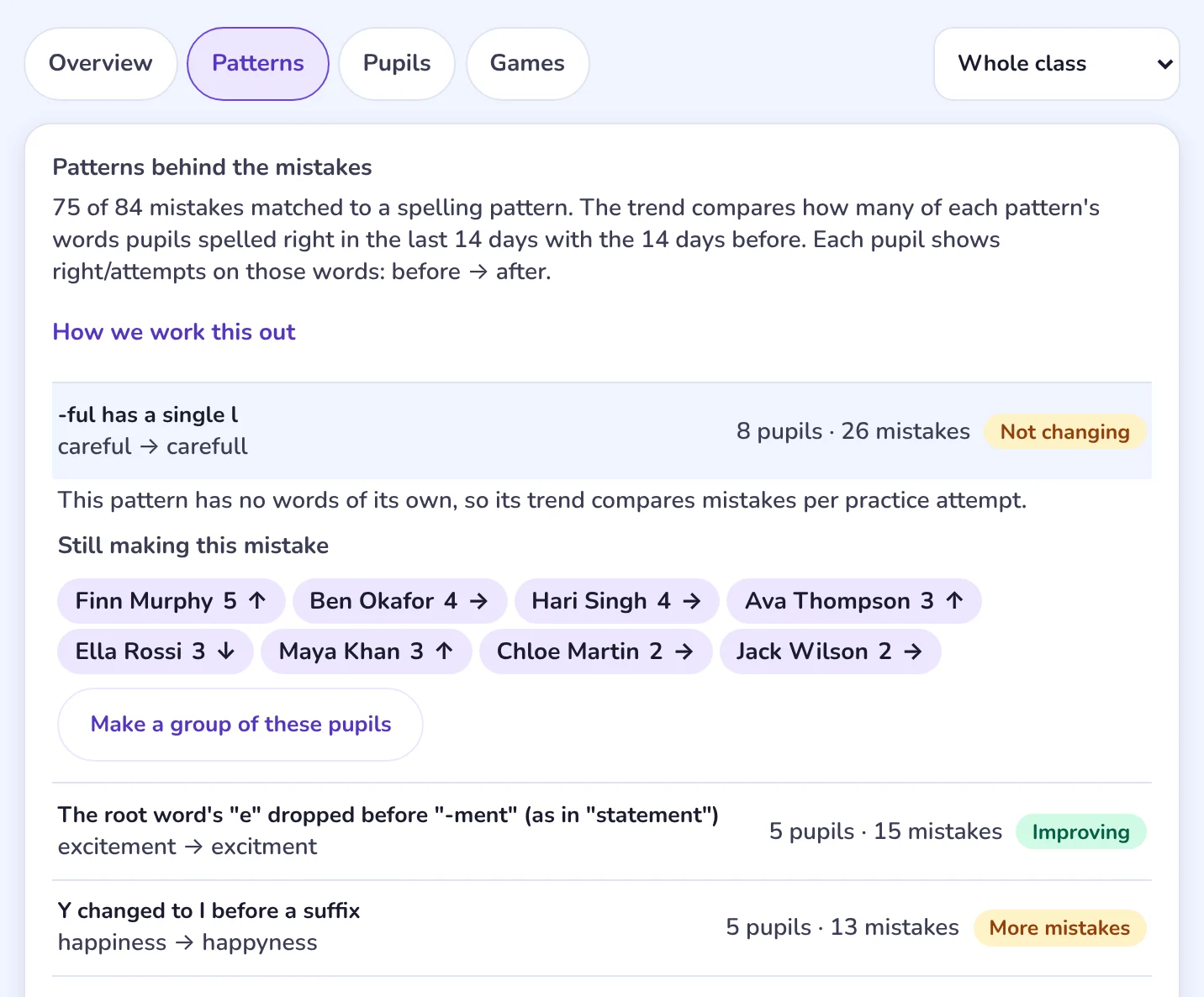
The report's Patterns view. The pattern -ful has a single l is open, showing the eight pupils still making the mistake and a Make a group of these pupils button.

The cold to hot card only counts activities named exactly Cold test and Hot test, from the last 8 weeks.

Questions

Do I have to use cold and hot tests?

No. Any week works with the queue and the report. The Overview, Patterns and Pupils views come from ordinary practice. Only the cold to hot card needs tests named Cold test and Hot test.

What happens in the first week?

There is no last week's list yet, so the hot test is hidden and pupils start with the cold test. From the second week they do both.

When does the next list start?

When each pupil's current week ends, usually on Monday. A pupil with no week running waits until one is set, so give this week's list with Start this week first.

Do I have to print and scan the tests?

No. Pupils can do both tests on screen. If you print and scan, a scanned sheet counts as that pupil's test and anyone without one does it on screen.

Can one group have different lists?

Yes. Tick just that group's pupils when you assign and queue. Groups are set on the Class list tab, under Groups in this class.

Will this replace a week a parent changed?

Not without asking. A pupil whose week a parent or guardian changed starts unticked, and you are asked before their week is replaced.

Can I change the week after applying it?

Yes. Press Edit this week on the Class week card, change any day, then save it as your class week and apply it again. Activities already done this week stay done.
Troubleshooting

You may have searched for

Key takeaways