Teachers
Test the whole class on paper and get every result into the app without typing a single mark.

Give the test on paper, then photograph the sheets with your phone or upload one scan. The app reads and marks every sheet for you.
Every pupil gets their own printed sheet with a QR code. After the test, hold your phone over each sheet, or scan the whole pile on the school scanner. The app works out whose sheet it is, reads each word and marks it. You check the few lines it is unsure about, with the paper in front of you or later on.
Test the whole class on paper and get every result into the app without typing a single mark.
Run the same test with a small group, and mark it on your phone before they leave.
This is for a class. For one child at home, use the Dictation test instead.
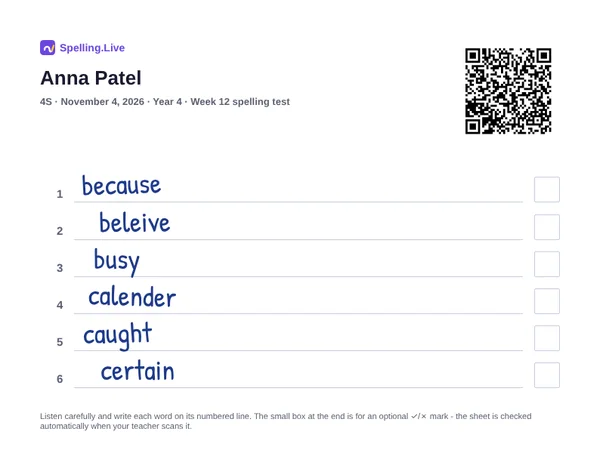
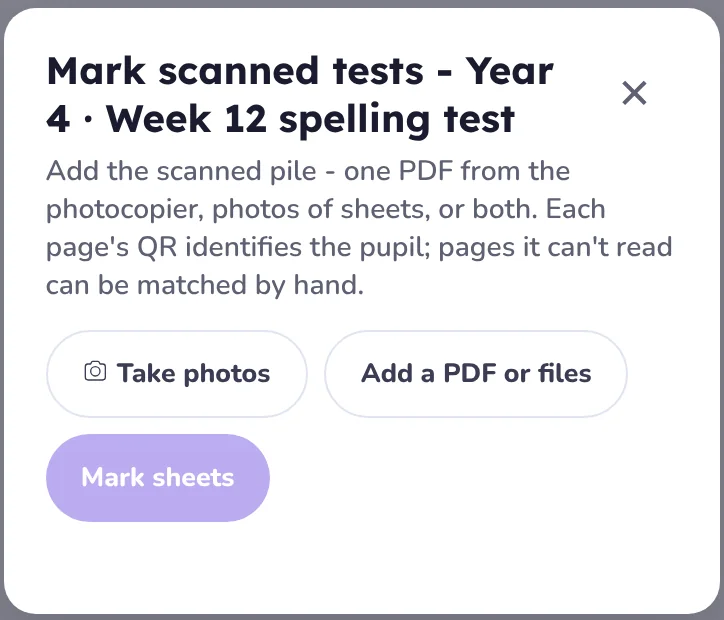
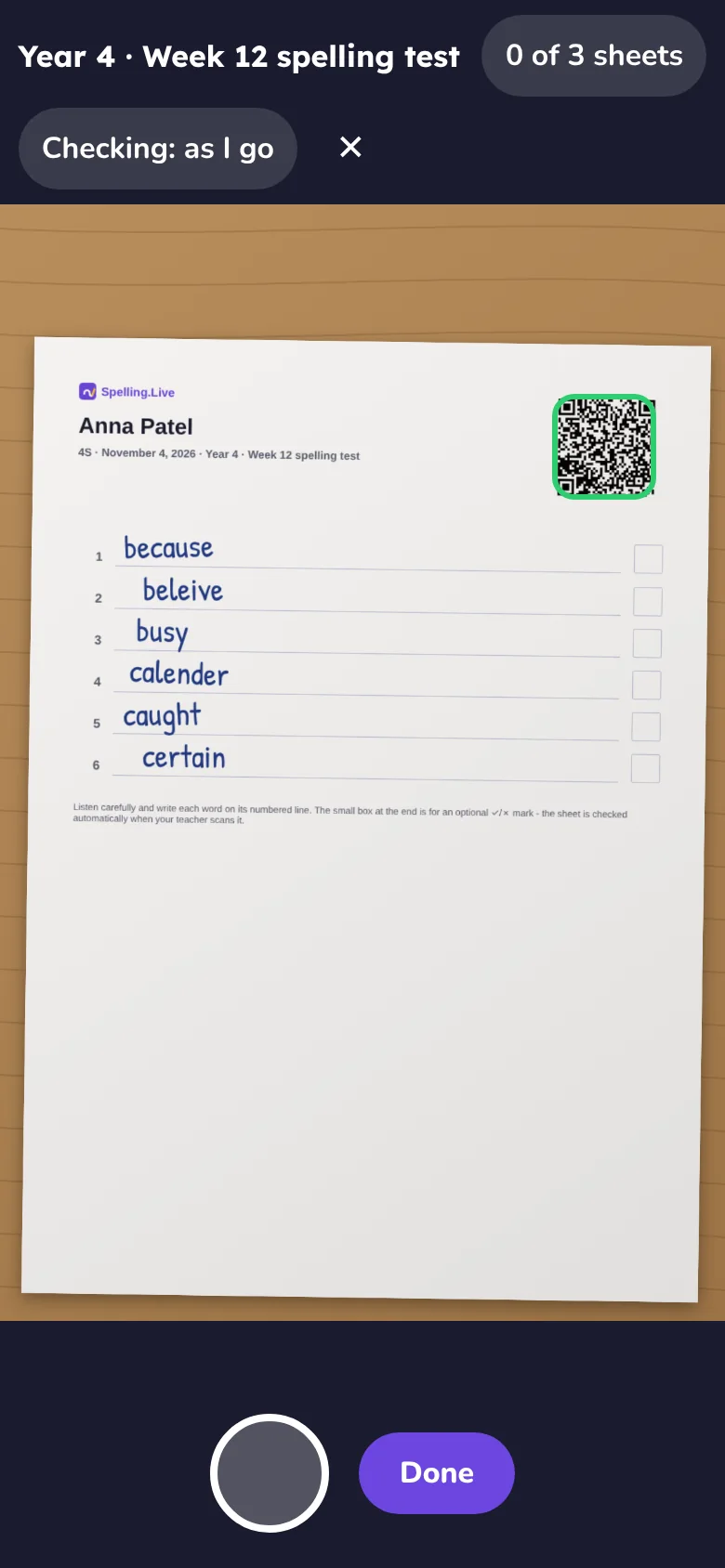
All three read and mark the sheets the same way. They differ in when you check, and what you need.
Each sheet is marked straight after its photo. You check it against the paper in your hand and save it, then the camera comes back for the next one.
Good for: checking with the paper in front of you. Every saved sheet is kept, so you can stop part-way and finish later.
Bear in mind: it takes a little longer per sheet.
Photograph the whole pile first, in a minute or two. Then tap Mark and check every sheet together, with each photo beside its answers.
Good for: getting the photos done quickly and checking when you have a quiet moment.
Bear in mind: nothing is saved until you press Save class results, so keep the screen open until then.
Scan the whole pile on the school scanner as one PDF, then add it with Add a PDF or files.
Good for: a big class, or when the sheets are already going through the copier.
Bear in mind: you need a scanner and the file on your device, and you check at the end.
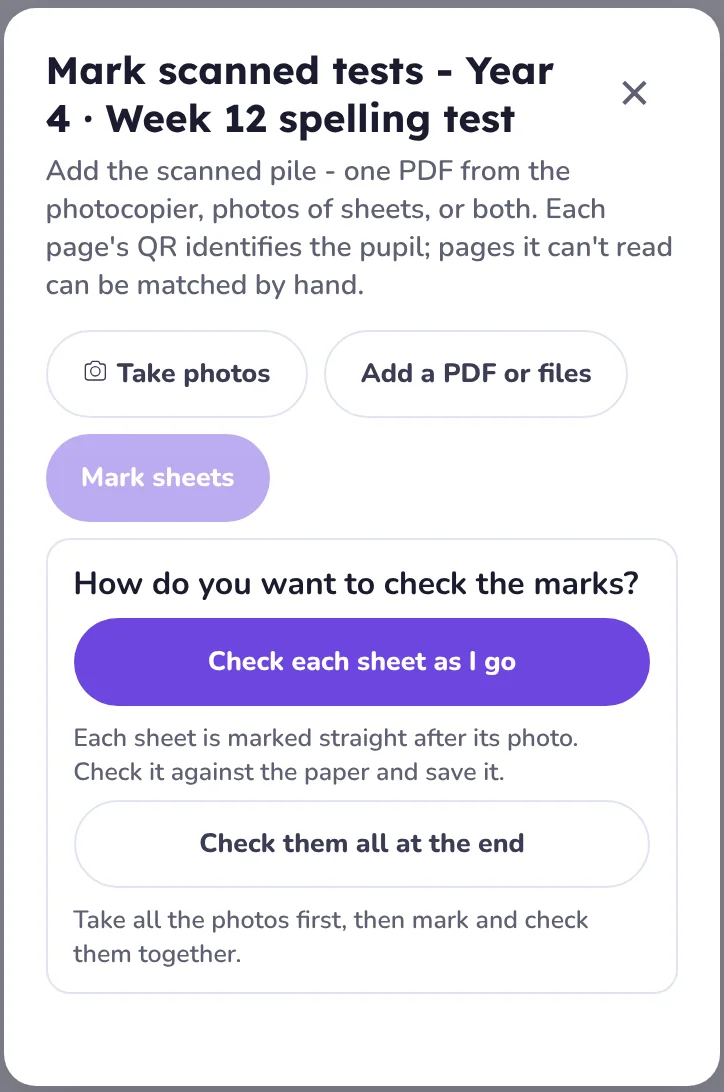
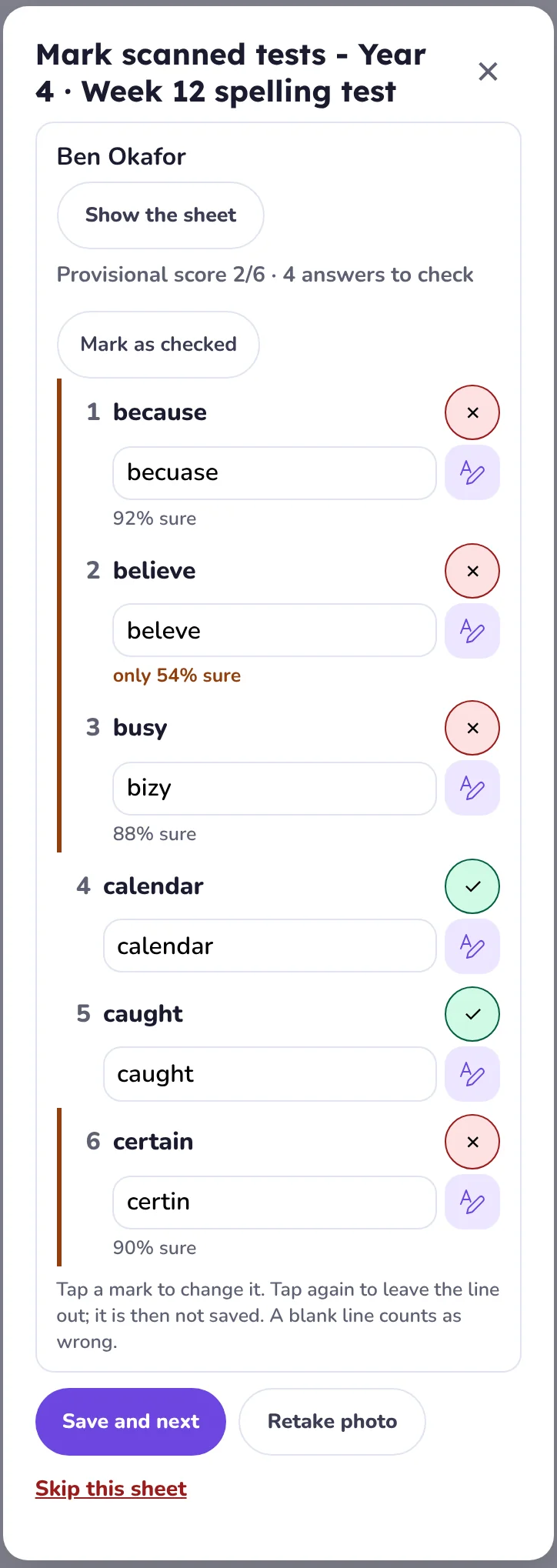
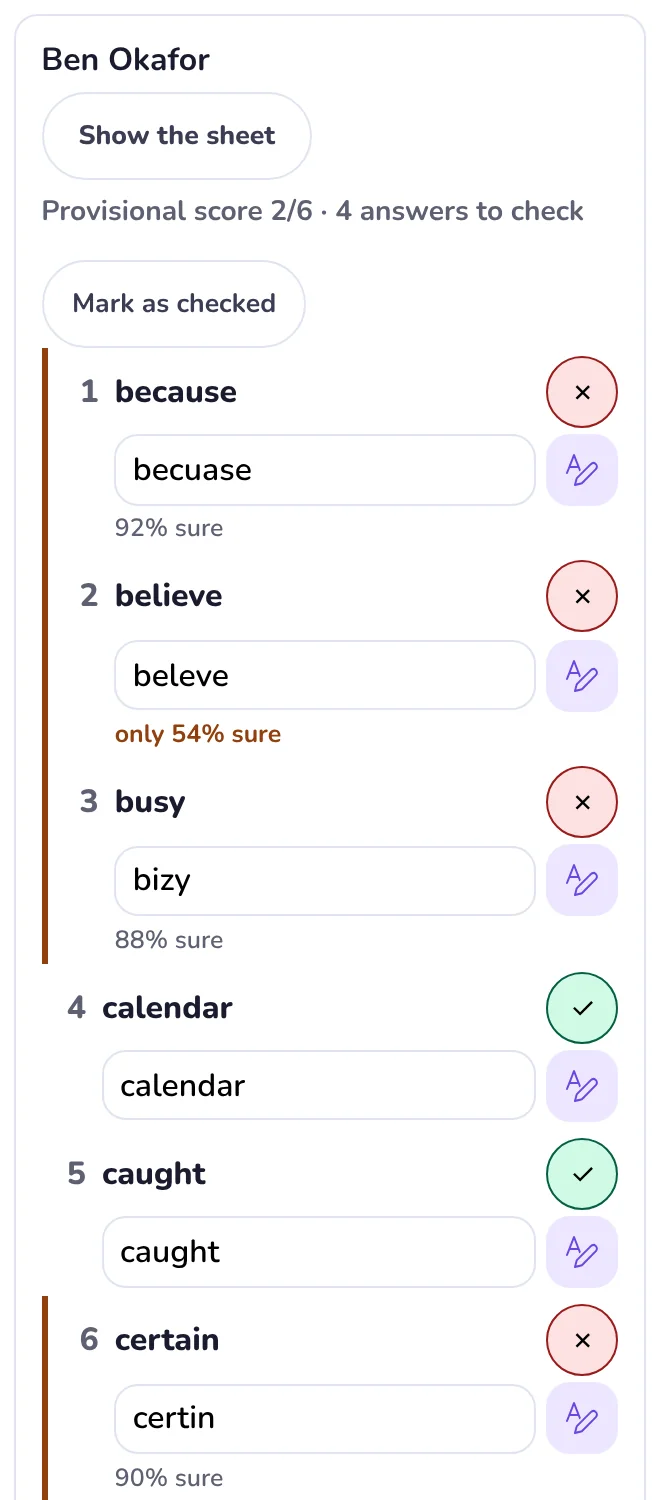
You only need to look at the lines the app is not sure about.
Where the results go. Saved results go to each pupil's progress report, the class report and their spaced repetition, like any other test. A sheet can also count as the cold or hot test in a pupil's weekly plan (see Bulk scan marking).
No. A phone or tablet camera is enough. A scanner is still handy for a big pile, and both ways mark the sheets the same way.
Yes, on a phone or tablet, in the Spelling.Live app or in Safari or Chrome. If the live camera will not start, your phone's own camera opens instead, one photo at a time.
After a few seconds the camera offers the shutter button. Tap it and the sheet is matched by the name printed on it. If that does not work either, you choose the pupil from a list.
It is held back. The camera says it already has that pupil's sheet, and a sheet already saved for this test is never saved twice.
With Check each sheet as I go, every sheet you saved is kept, so you can open the camera later and carry on with the rest. With Check them all at the end, nothing is saved until you press Save class results.
Yes, privately, so you can look at a sheet again later. Only you can open them, and they are deleted on 1 September after the school year. You can delete a file at any time, and that also deletes the results saved from it.
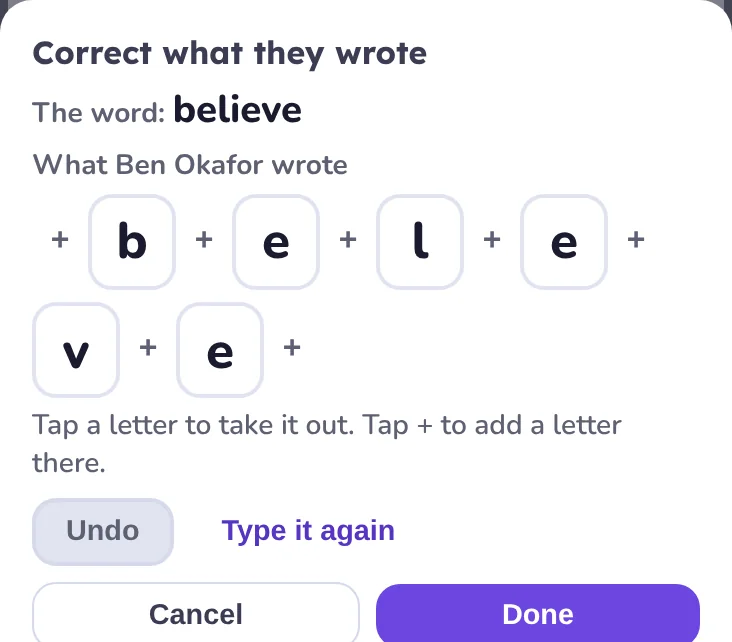
It reads what each pupil wrote and compares it with the word on the list. You check the lines it is not sure about, and you can change any mark before saving.
Most schools pay a yearly subscription for each pupil, and marking is part of it, however many tests you run. A school that chooses credits instead pays 10 credits per pupil sheet. Nothing is ever billed to a pupil's family account.