Spelling Live
← Back to Home

The weekly spelling scheme

A list for every week of Years 3 to 6, built from the National Curriculum. Here is how to use it.

Overview

The scheme is 36 weekly spelling lists for each year: three terms of 12 weeks. Each week teaches one spelling rule or one set of statutory words from English Appendix 1, with a revision week every half term. Teachers can send a whole term to a class in one go. Parents can pick a week for their own child.

Who this is for

Teachers and tutors

No spelling scheme in school? Send a term of weekly lists to your class, and change any week first.

Parents

Add a week's list when no school list comes home, or follow the year alongside school. Pick an earlier year for revision or a later one for a challenge.

Children

Nothing changes for them. Each week's list is practised like any other list.
How a term works

  1. Choose a year and term12 weeks appear, each with its rule.
  2. Make it yoursUntick, reorder or change any week.
  3. Send itWeek 1 starts now. The rest wait in a queue.
  4. Moves on by itselfEach pupil's next week starts when their current week ends.

Send a term to your class

1. Open the class. Go to Classes, open the class and choose the Assign list tab.
2. Choose Use a scheme. The National Curriculum weekly scheme opens.
3. Pick the year and the term. Year 3, 4, 5 or 6, then Autumn, Spring or Summer.
4. Check the weeks. Untick a week you don't want, move weeks up or down, or tap Edit to change the words.
5. Choose how the weeks reach your class and tap Send the term.
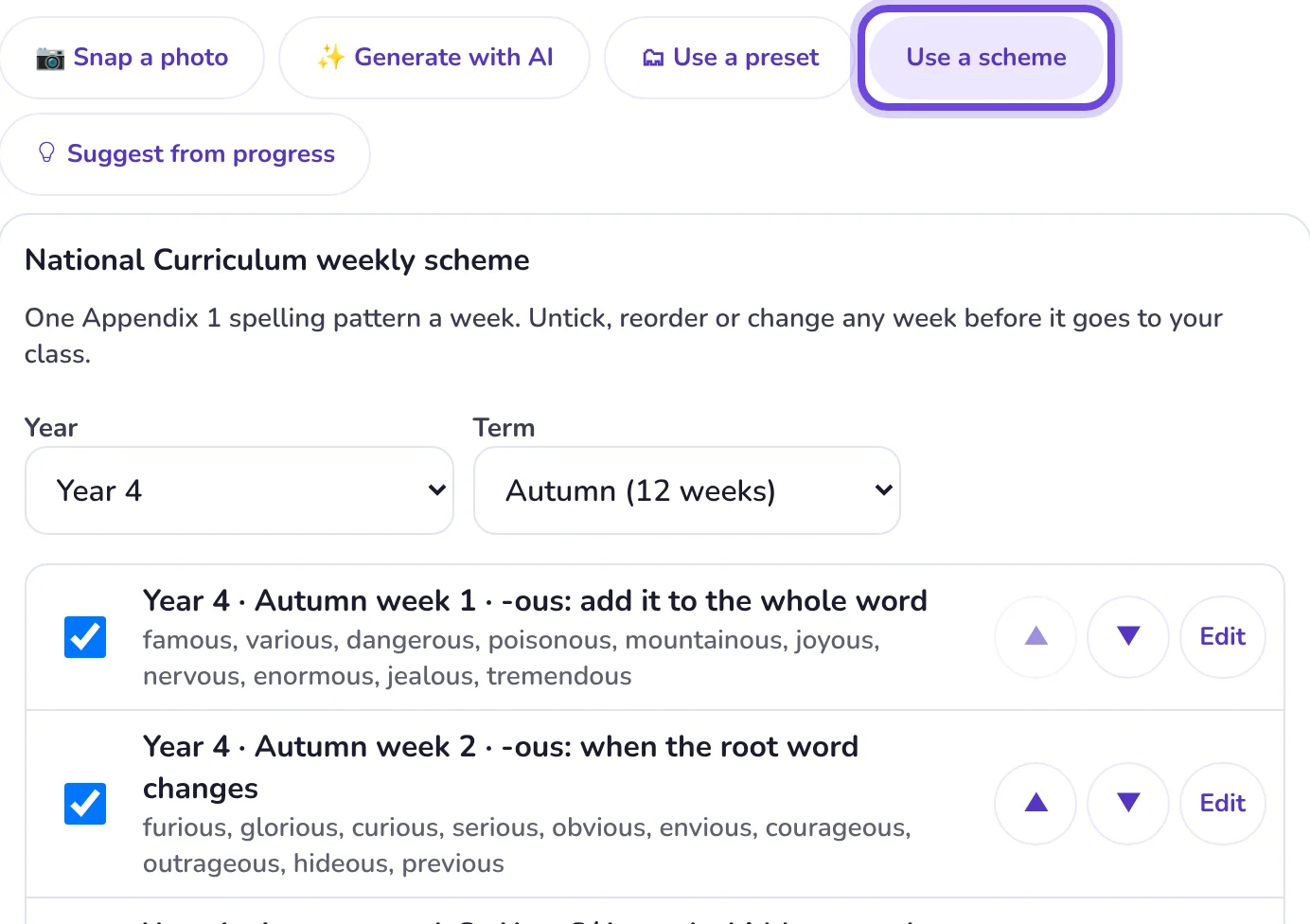
The class Assign list tab, with the Use a scheme button ringed.
On the Assign list tab, choose Use a scheme.
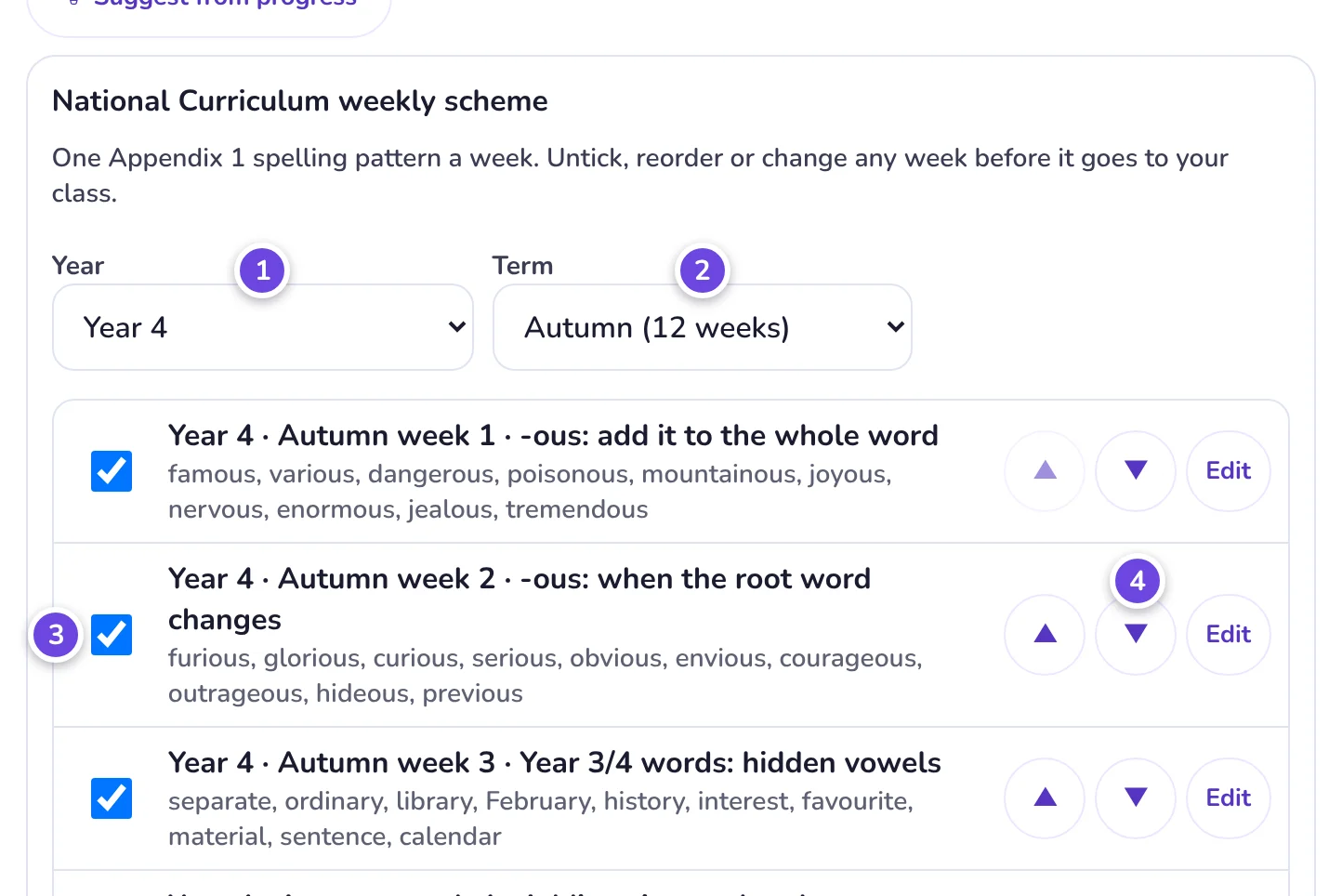
The National Curriculum weekly scheme panel with four numbered pins: the Year picker, the Term picker, a week's tick box, and the arrows and Edit button.
  1. YearYear 3, 4, 5 or 6.
  2. TermAutumn, Spring or Summer: 12 weeks each.
  3. Tick boxUntick a week to leave it out.
  4. Arrows and EditMove a week up or down, or change its words.
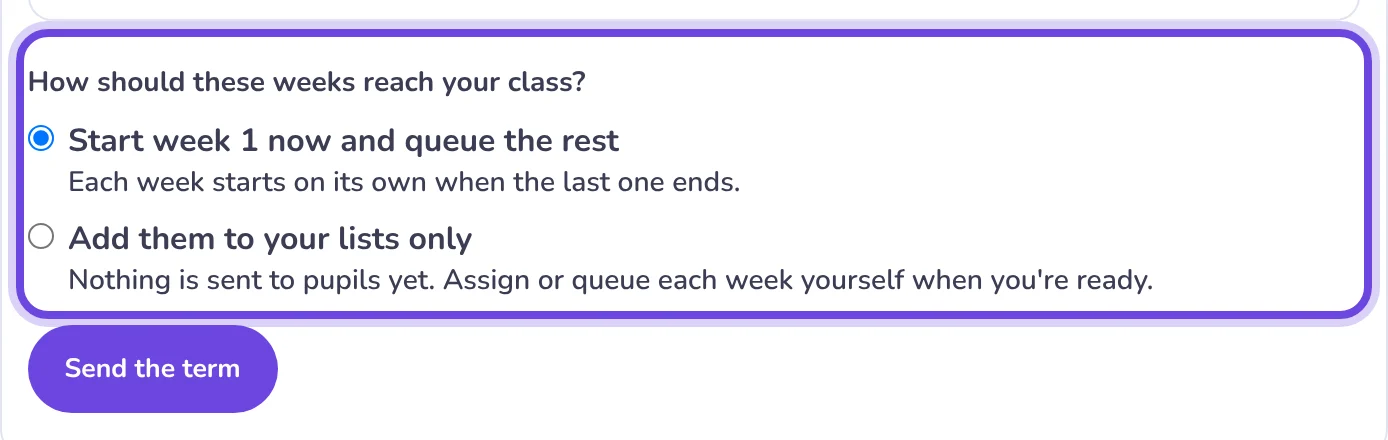
The question How should these weeks reach your class, with the choices ringed.
Choose how the weeks reach your class, then tap Send the term.
Start week 1 now and queue the rest. Shown when the class has no week running. Week 1 starts straight away.
Queue every week, starting after the current one. Shown when a week is already running. The scheme starts when that week ends.
Add them to your lists only. Saves every week to your lists and sends nothing, so you can assign them yourself later.

A queue moves only when a pupil's week ends. A pupil with no current week waits. If you choose to queue every week, make sure this week's list has been started first.

Change the queue later

Open the class and choose the Assignments tab. This term's queue shows every week still to come, in order: Next, 2nd, 3rd and so on.
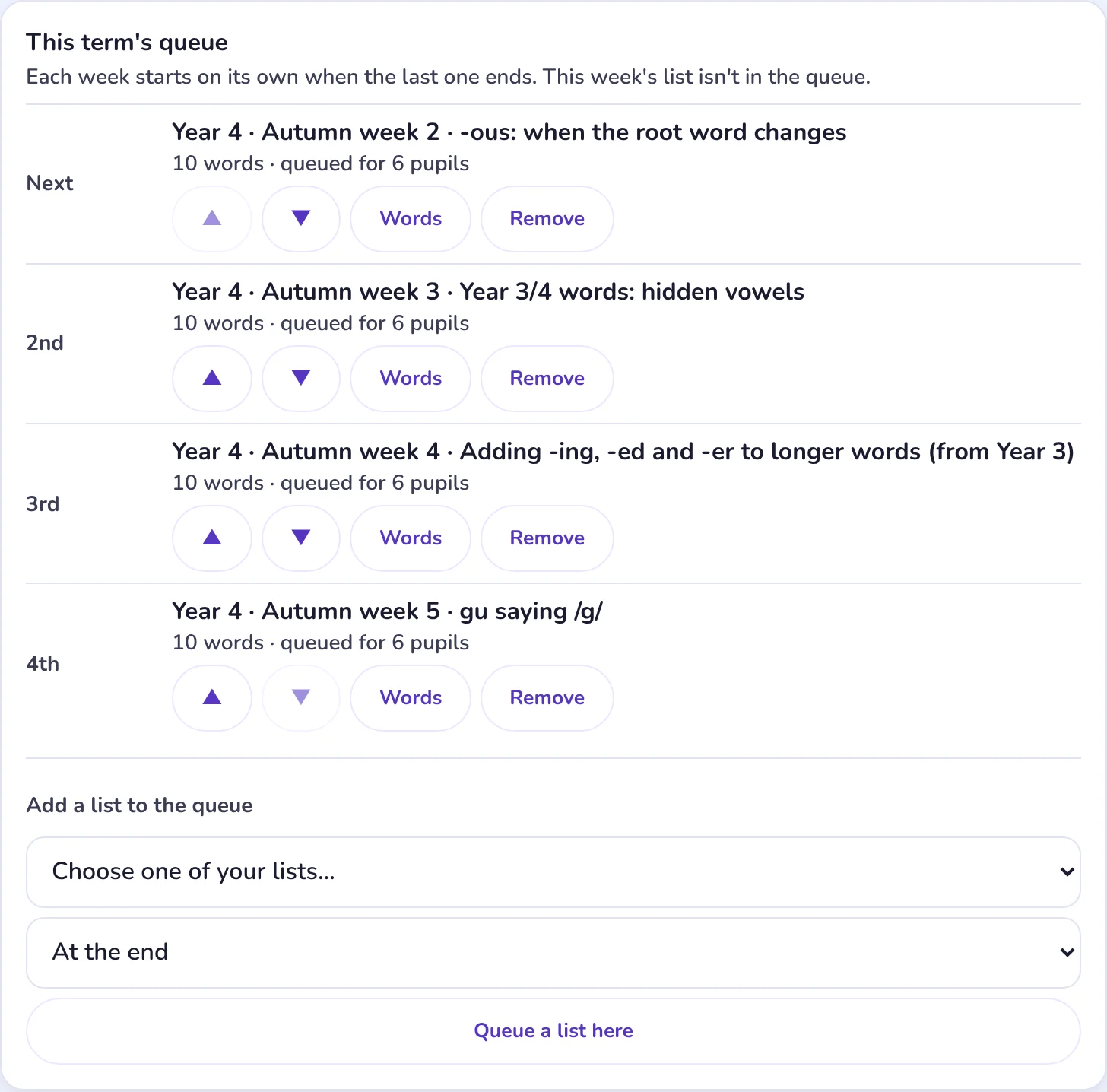
Reorder: use the arrows to move a week up or down.
Change words: tap Words. Every pupil's copy of that week changes together.
Take a week out: tap Remove.
Add your own list: under Add a list to the queue, choose one of your lists and where it goes, then tap Queue a list here.
This term's queue on the Assignments tab, listing the queued weeks with arrows, Words and Remove buttons, and Add a list to the queue underneath.
This term's queue. This week's list is not in the queue: it is already running.

Use it at home

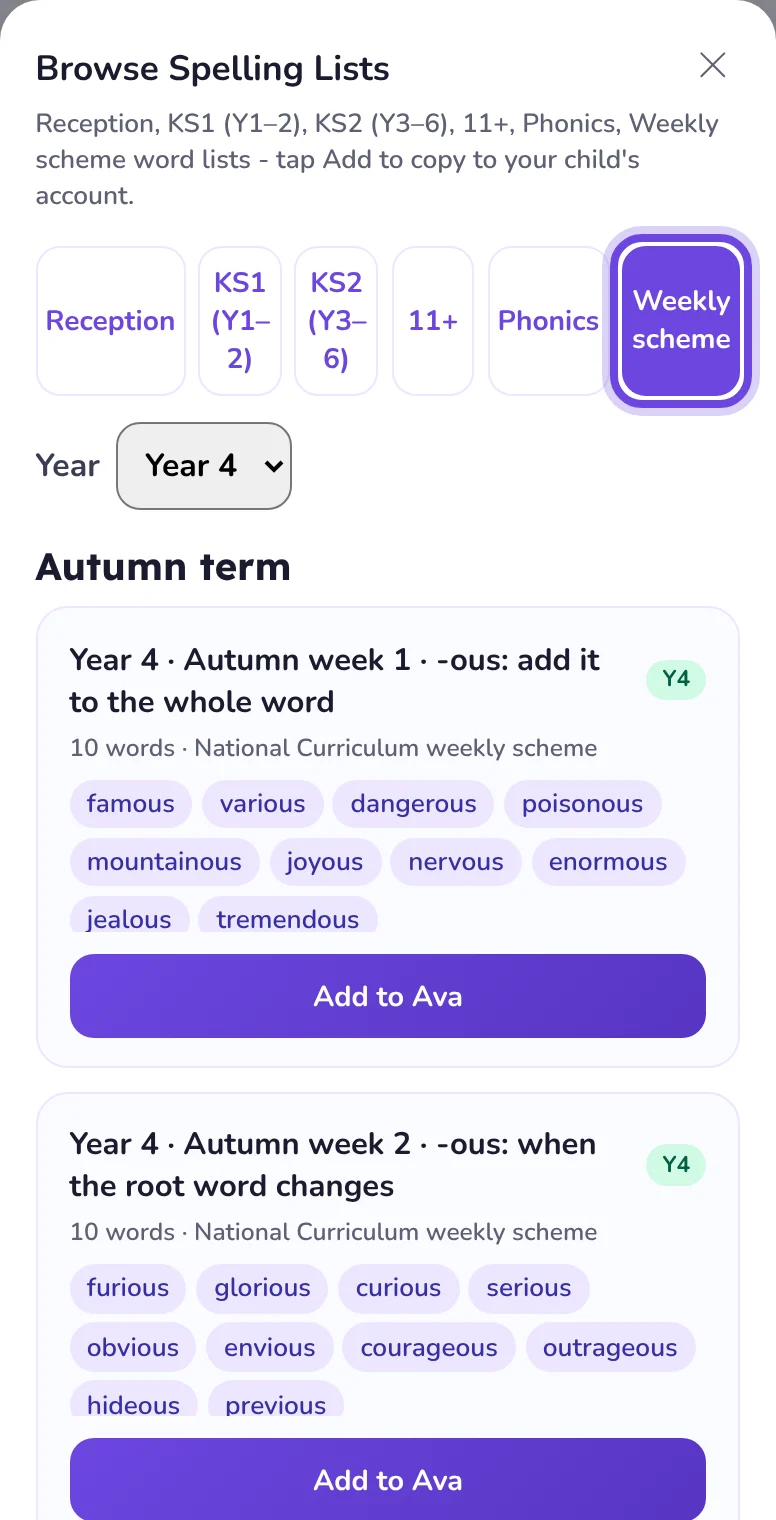
1. Open your child's Word lists and tap Use a preset list.
2. Choose the Weekly scheme tab. It opens on your child's own school year, or the nearest year with a scheme. Pick another year to go back for revision or ahead for a challenge.
3. Tap Add to your child on any week. It becomes one of their lists, ready to practise.
Browse Spelling Lists with the Weekly scheme tab ringed, a Year picker set to Year 4, and Autumn term weeks each with an Add button.
The Weekly scheme tab. It opens on your child's own year, or the nearest one.

If your child's school already sets weekly spellings, keep using those. The scheme is for weeks with no school list, or to follow the year alongside school.

Questions

Which years does the scheme cover?

Years 3, 4, 5 and 6. Year 3 starts each rule with short, familiar words; Years 5 and 6 cover the Year 5/6 statutory words.

Can I change the words?

Yes. Before you send a term, tap Edit on any week. After it is queued, use Words on the Assignments tab. Every pupil's copy changes together.

Can I add my own list in between?

Yes. On the Assignments tab, use Add a list to the queue and choose where it goes.

Why has the next week not started?

A queued week starts only when a pupil's current week ends, usually on a Monday. A pupil with no current week waits until one is set.

Does my child need the scheme if school sets spellings?

No. Keep using your school's list. The scheme is there for weeks when no list comes home, or to follow the year alongside school.

Why can't I see the Weekly scheme tab?

It shows for any child set to UK English. Check their English in their settings, under About them.

Is it the DfE's own scheme?

No. It is our weekly order of the DfE's English Appendix 1 statements and statutory word lists. The DfE does not publish a weekly scheme.

Troubleshooting

You may have searched for

Key takeaways